
Put an Order on a House Account
Updated
Record an unpaid customer balance against a responsible operator. Both parties sign the record so the venue can collect and clear it later.
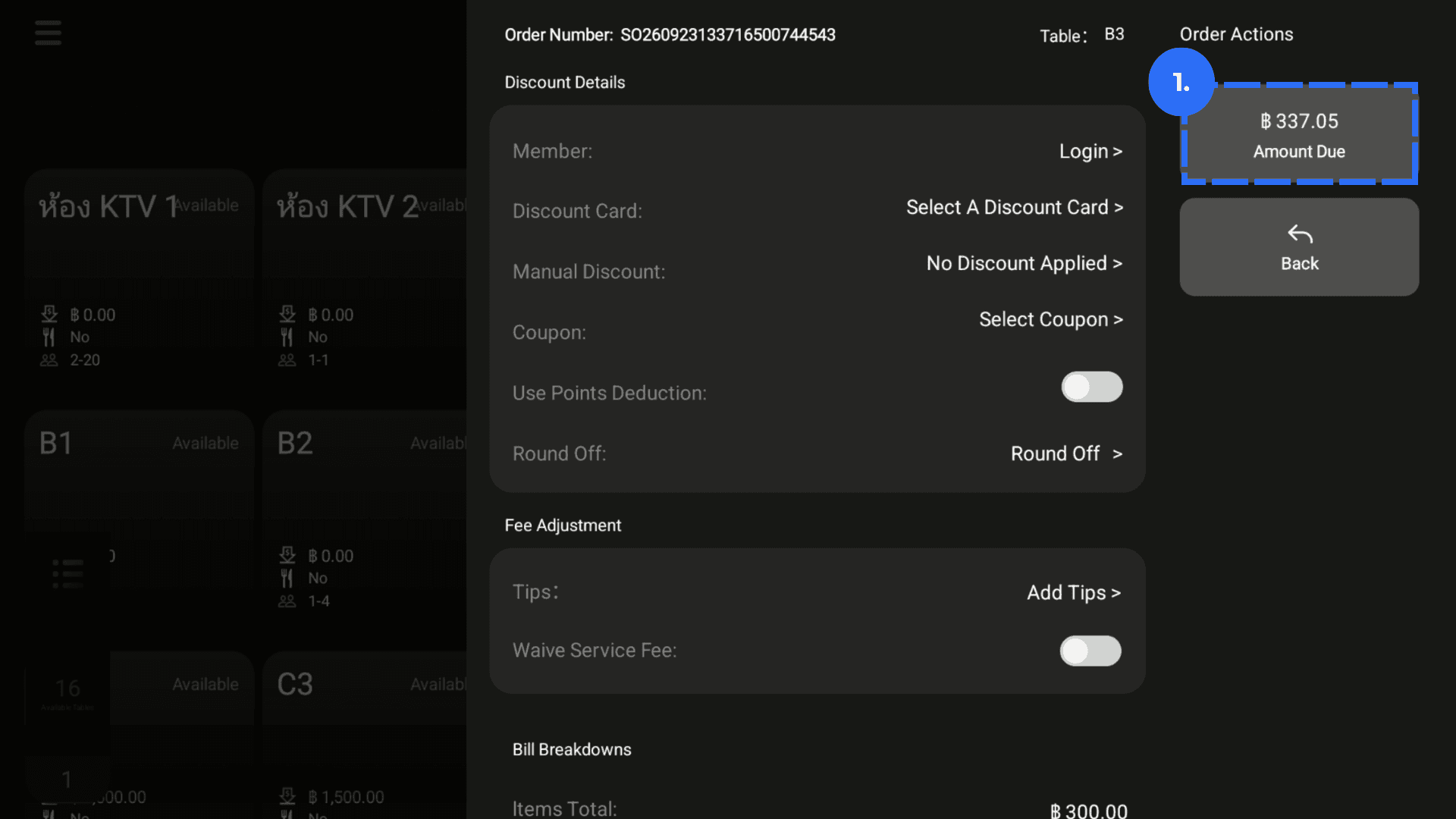
1. Open Payment Details. Click on Amount Due.
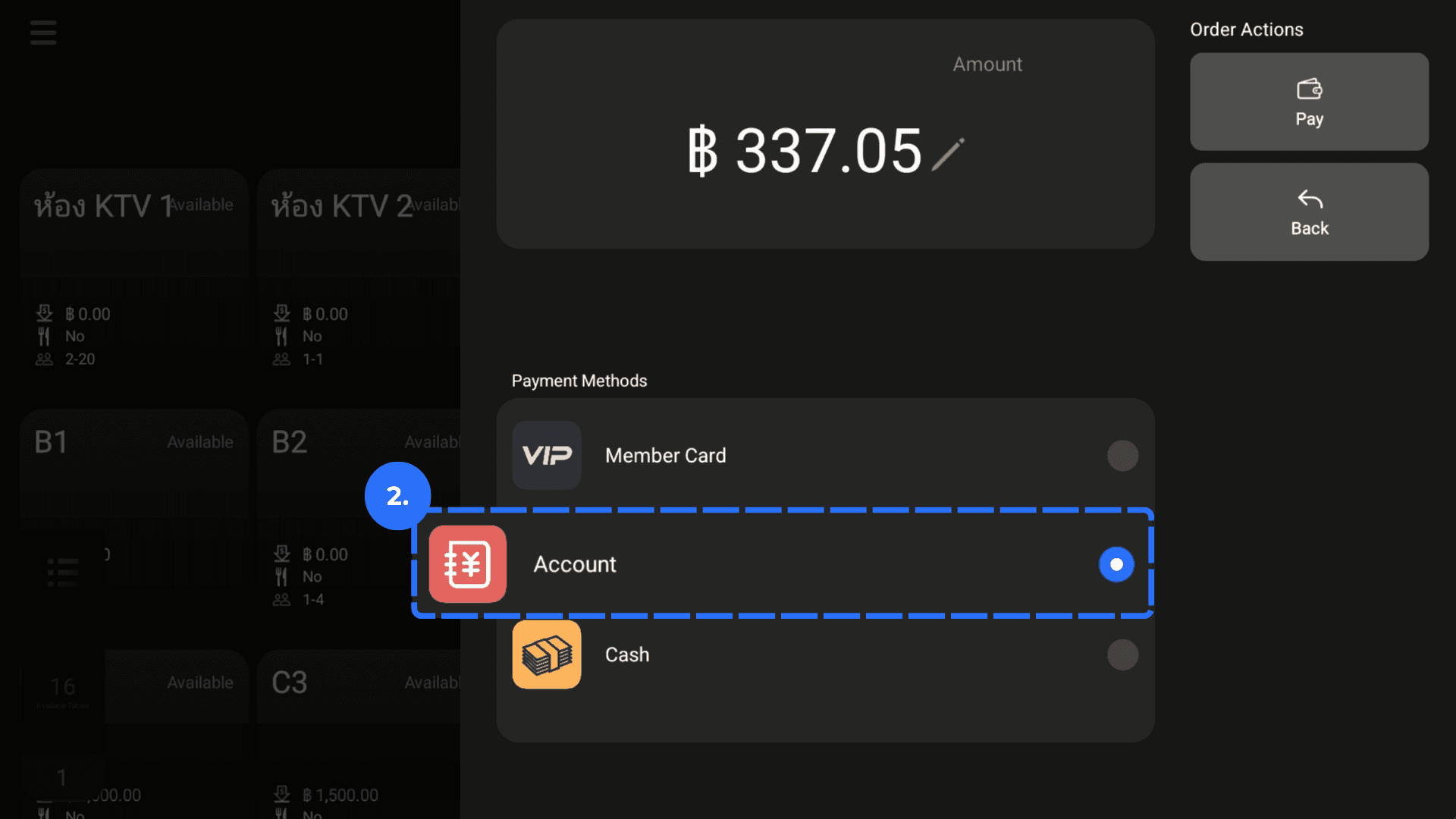
2. Select Put on Credit as payment method.
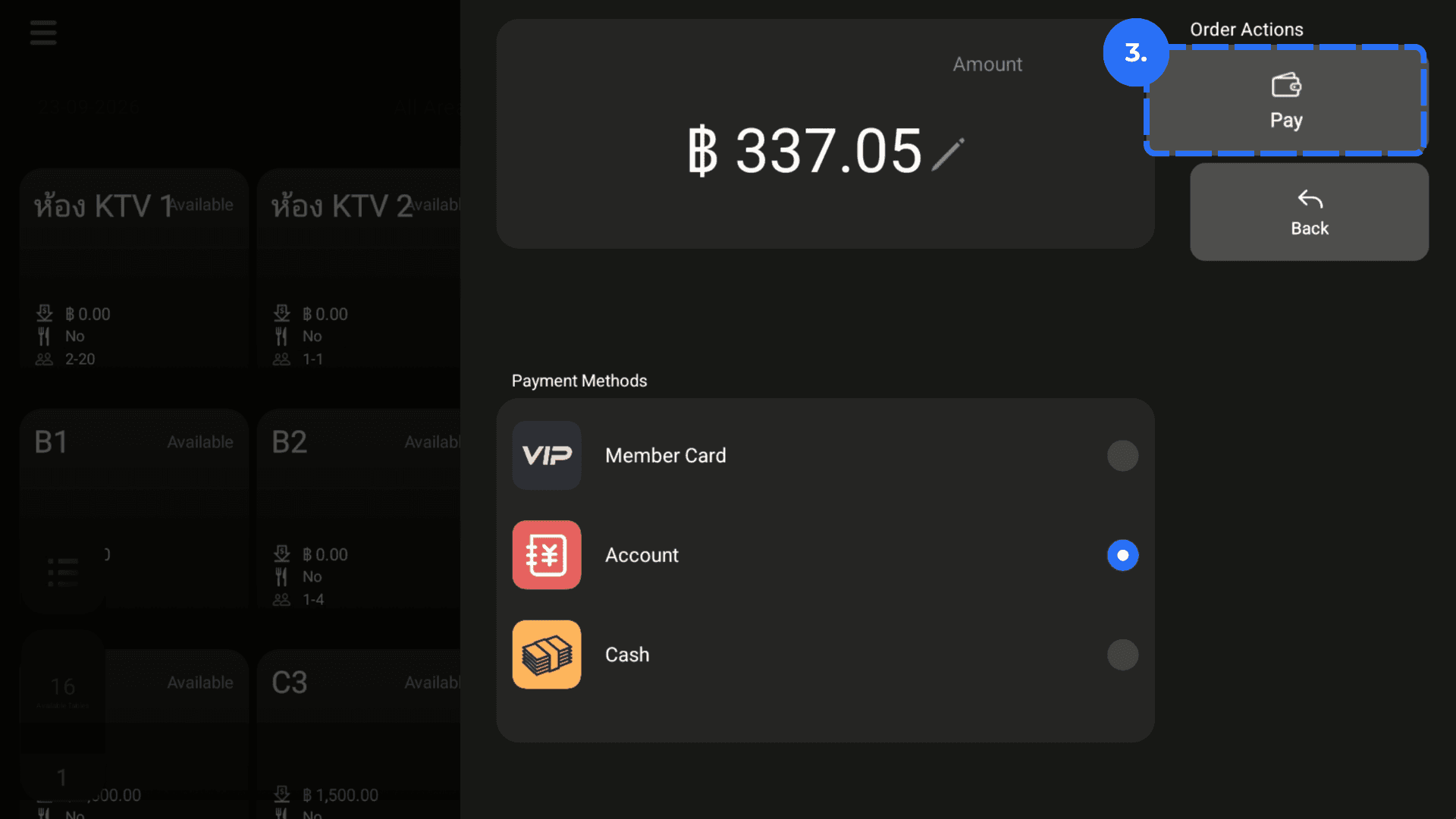
3. Click on Pay.
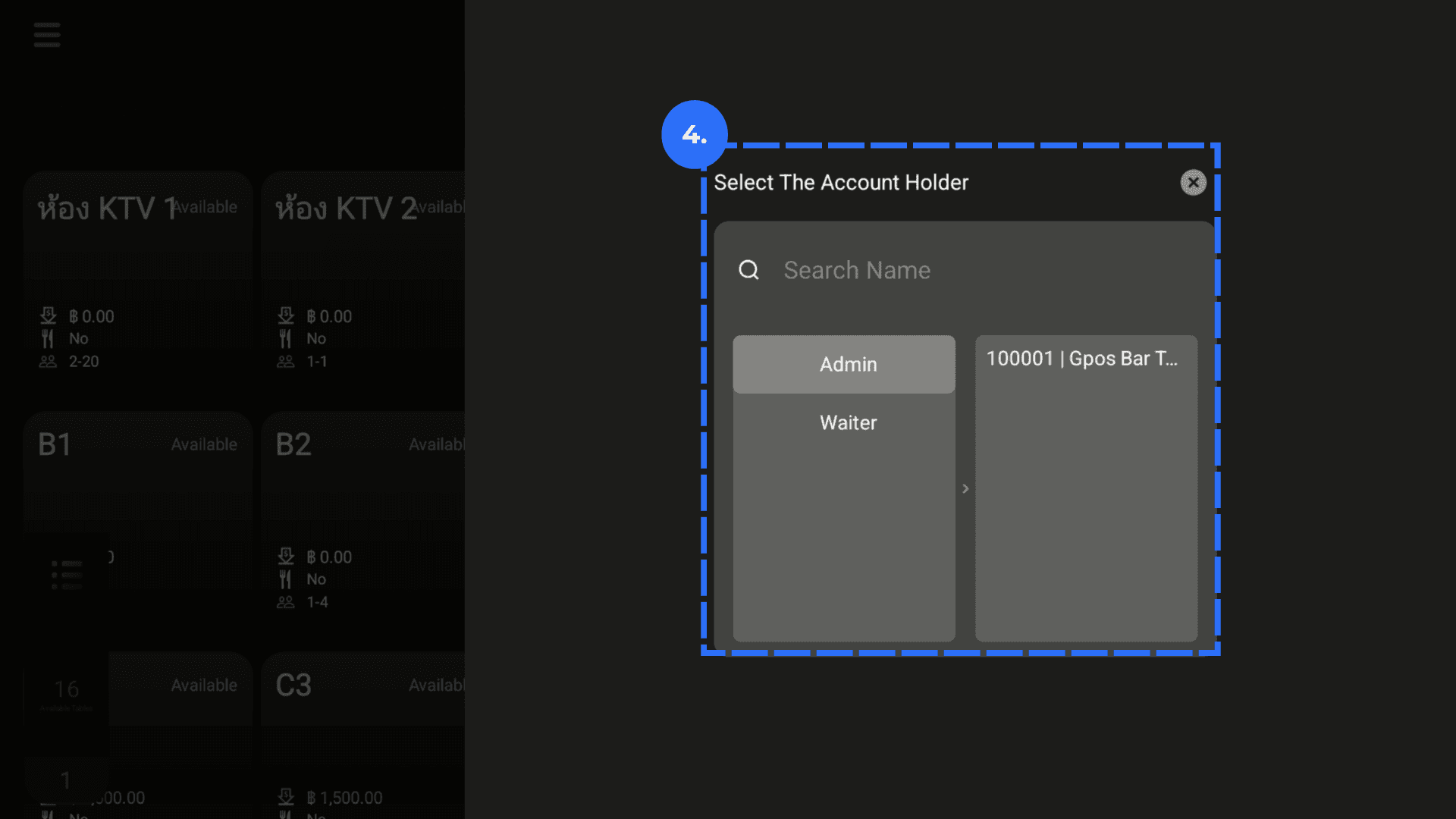
4. Select the House Account Operator responsible for collection.
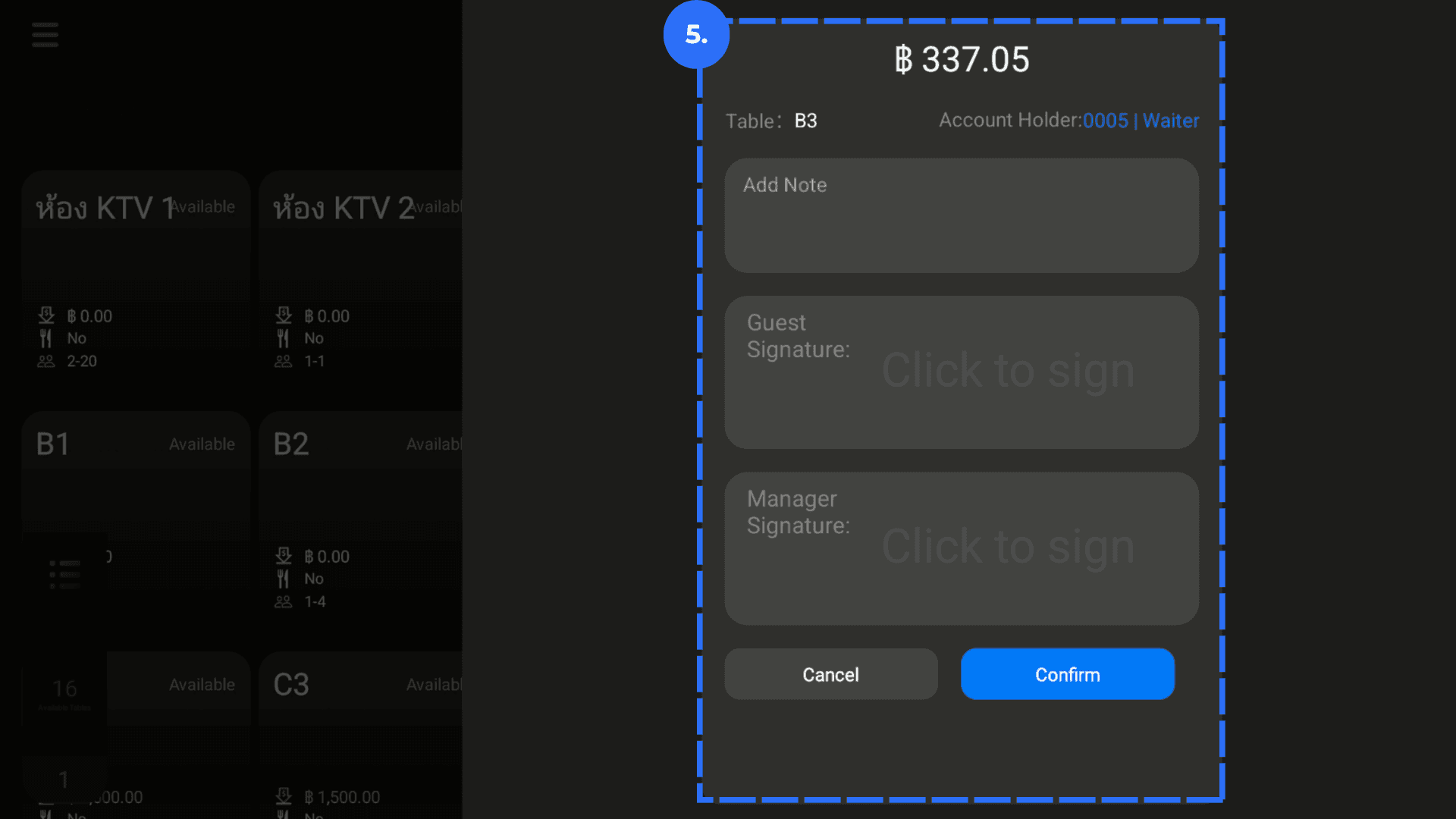
5. Complete the House Account Information.
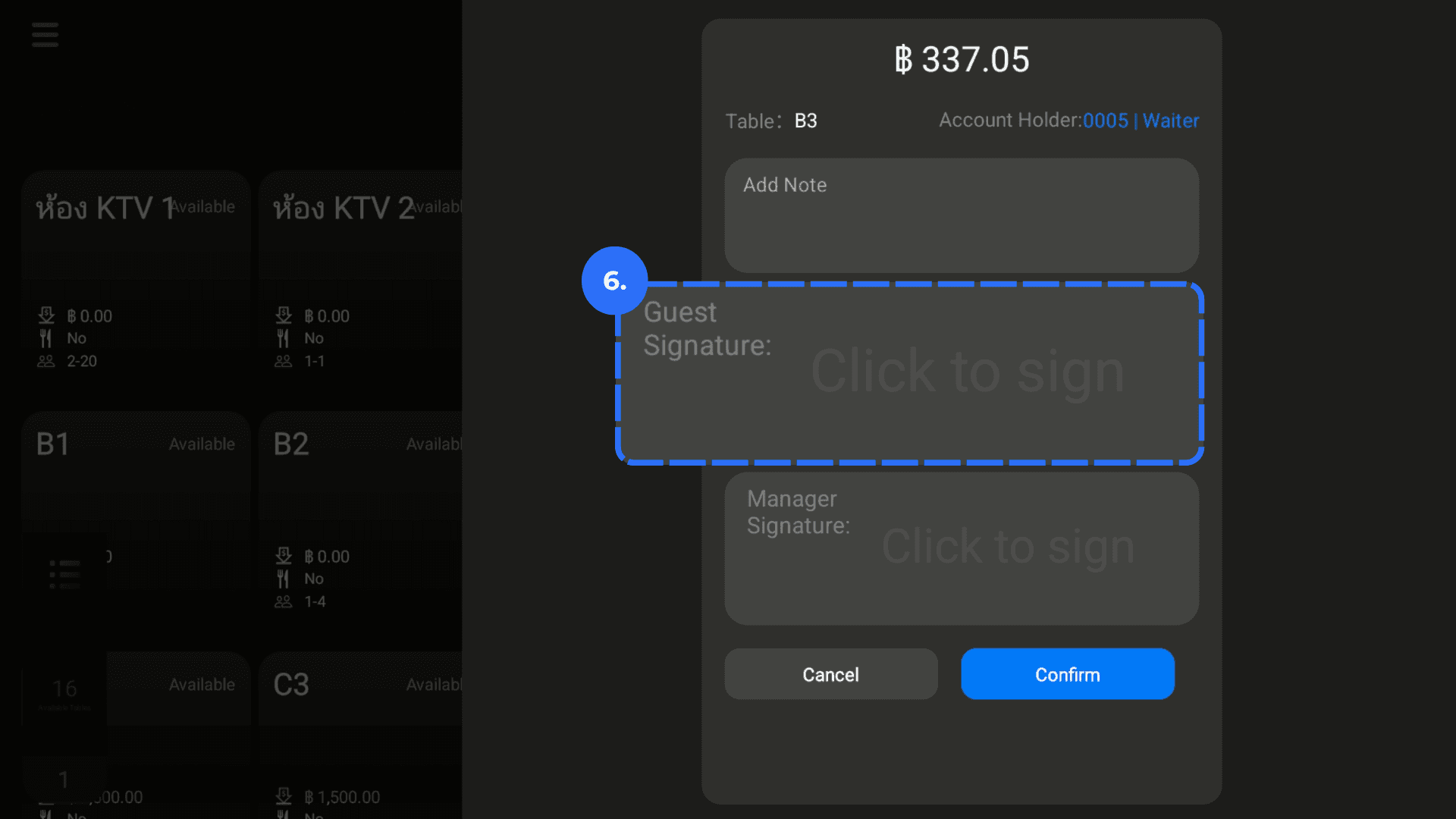
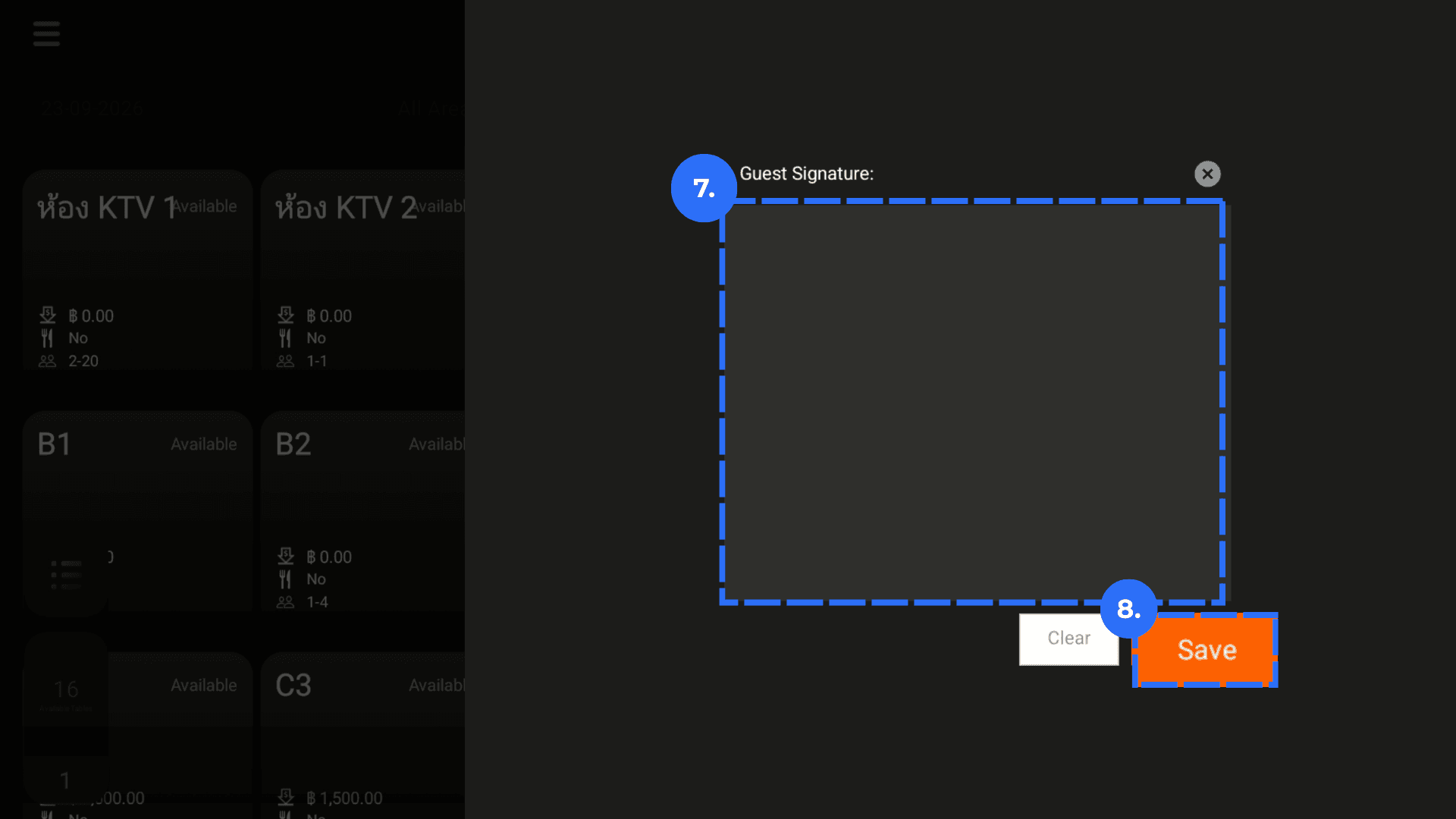
6. Click the blank customer signature field. Ask the Customer to sign. Click Save.
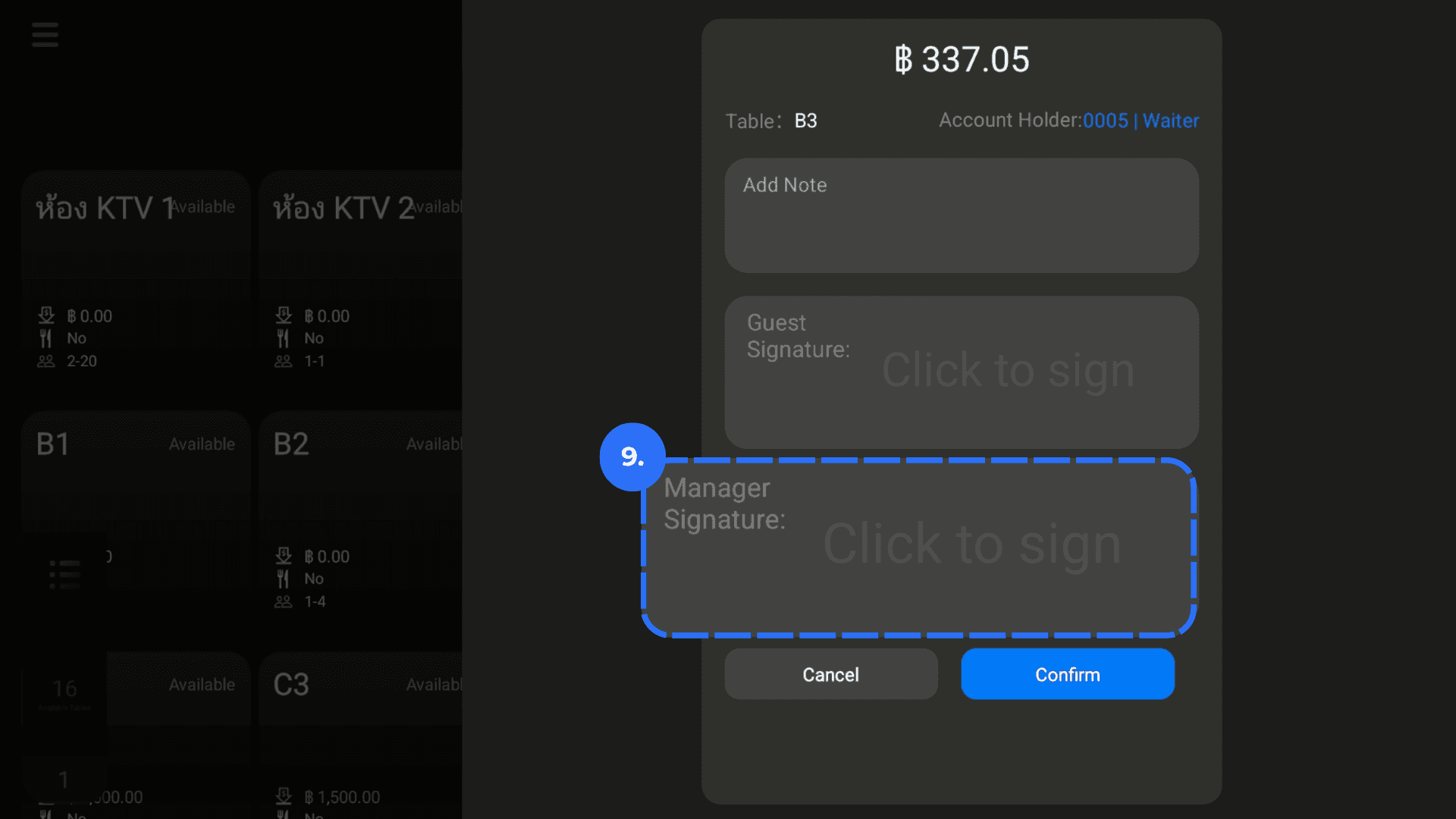
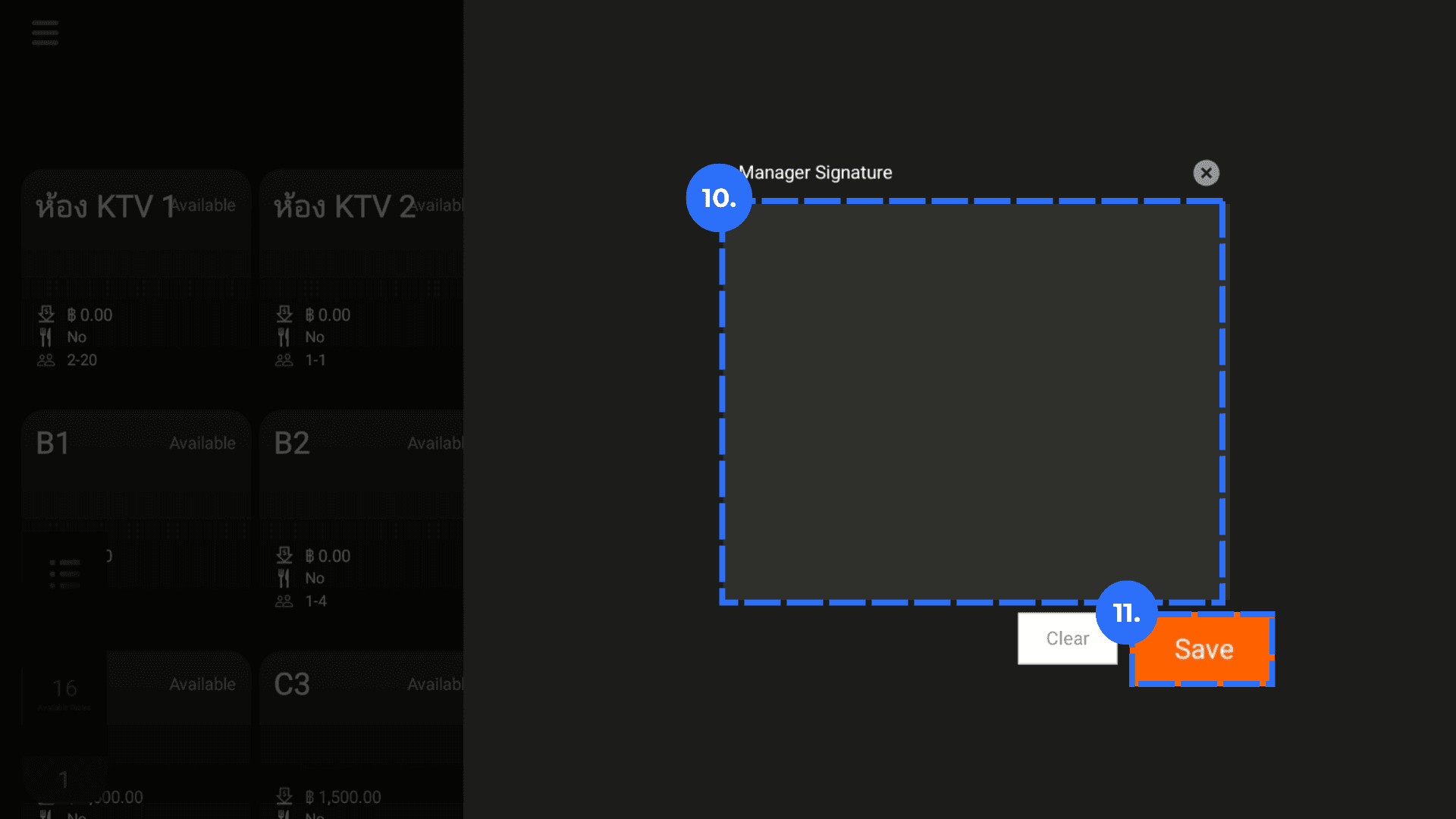
7. Click the operator signature field. Ask the House Account Operator to sign. Click Confirm.
8. Confirm that the order is updated to Paid.