
Provide QR Self-Service to a New Table
Updated
Open the customer's table and display or print its QR code. Customers can scan it to order products and request service from their phones.
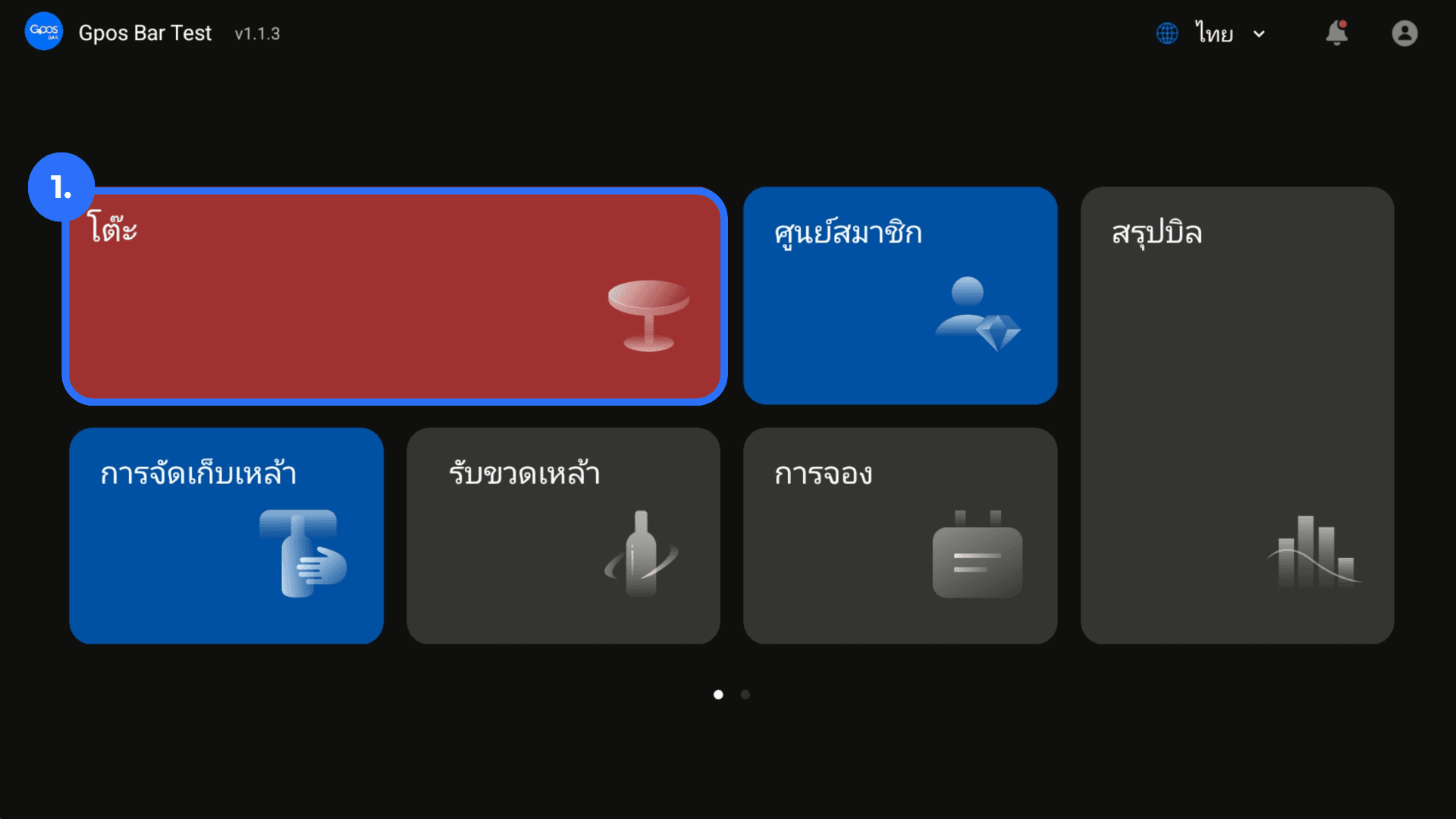
1. From the homepage, click Tables.
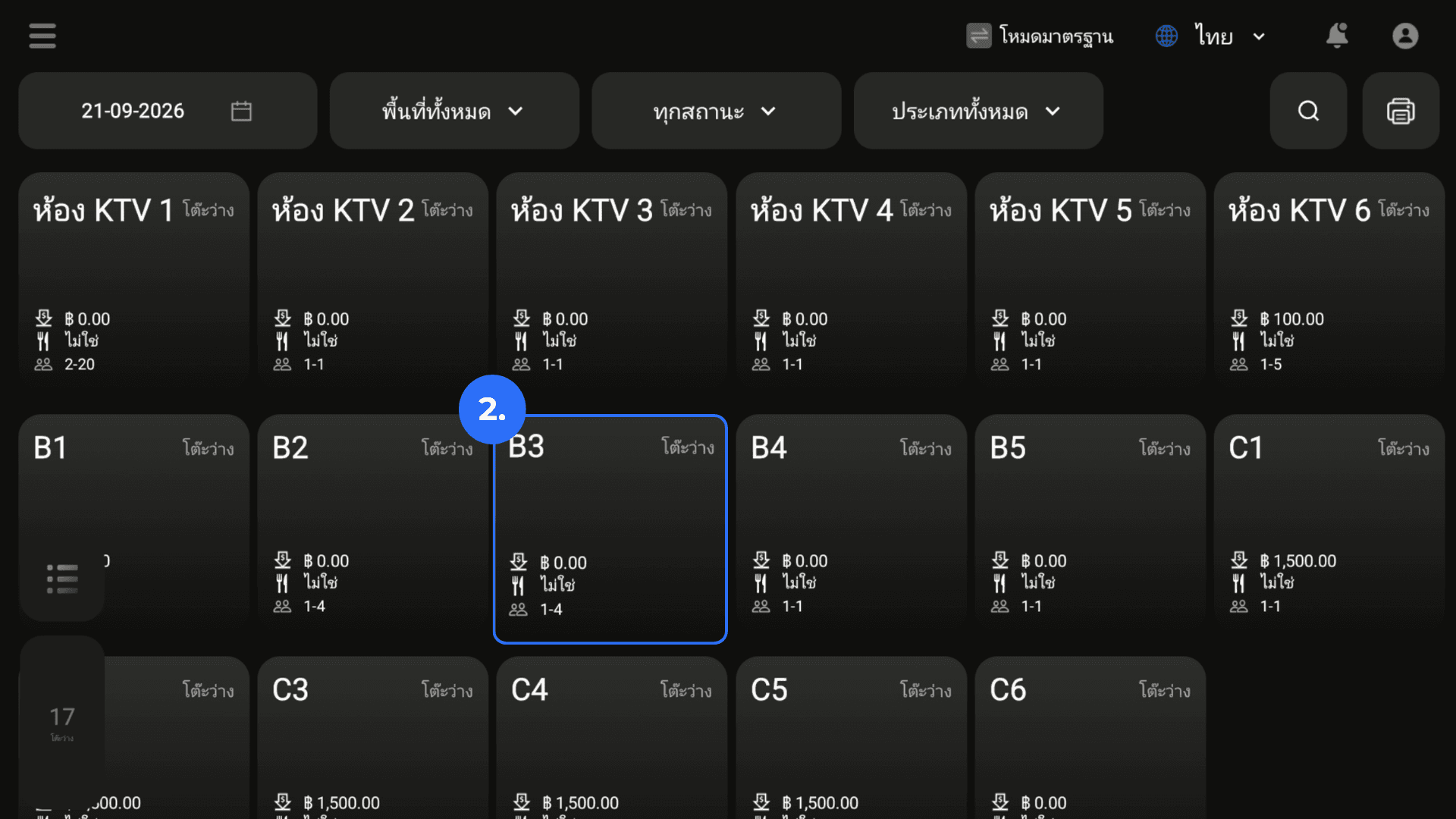
2. Select the new customer's table.
3. Open the table for the customer.
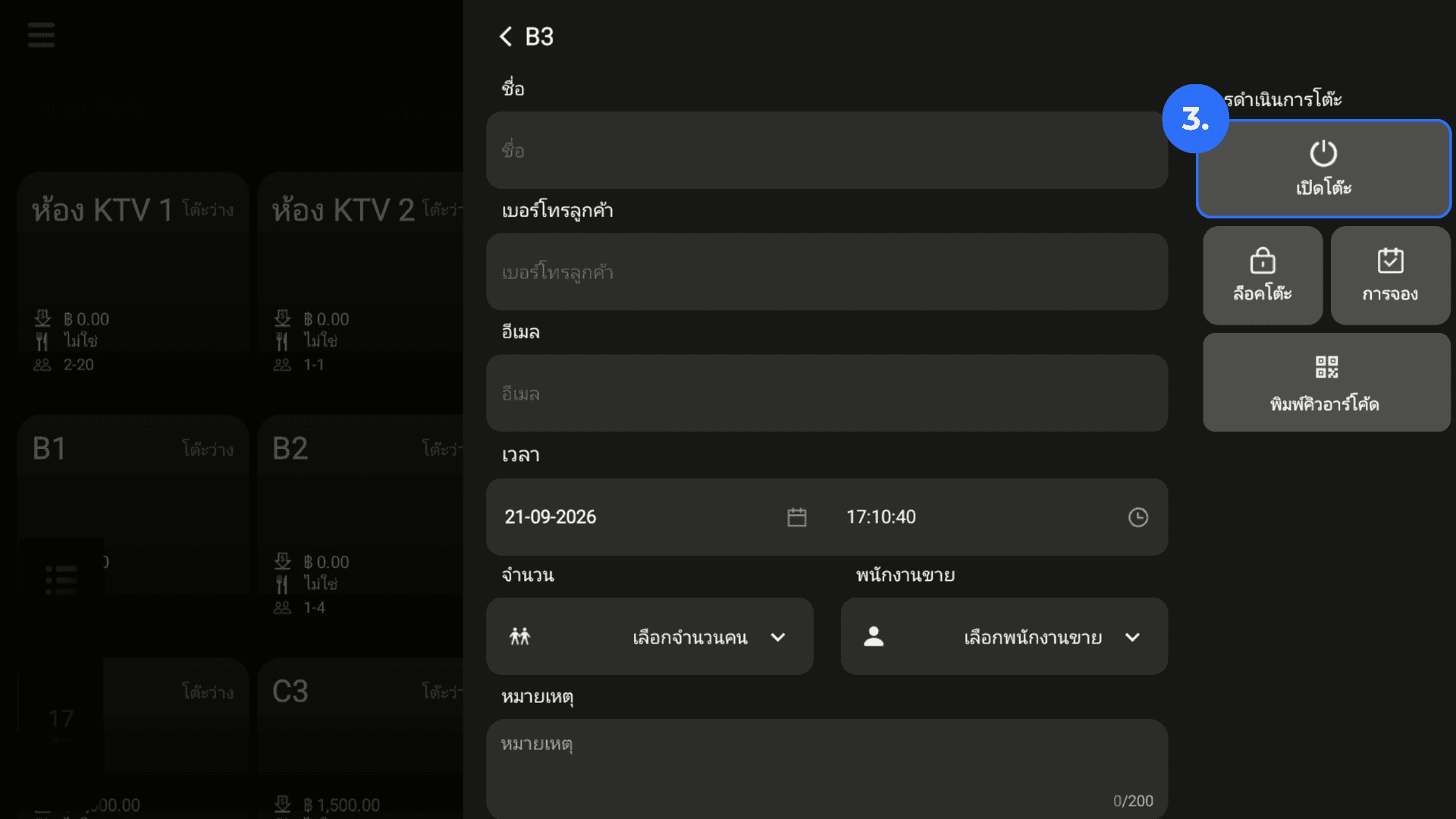
4. Open Print QR using the control shown in the table actions.
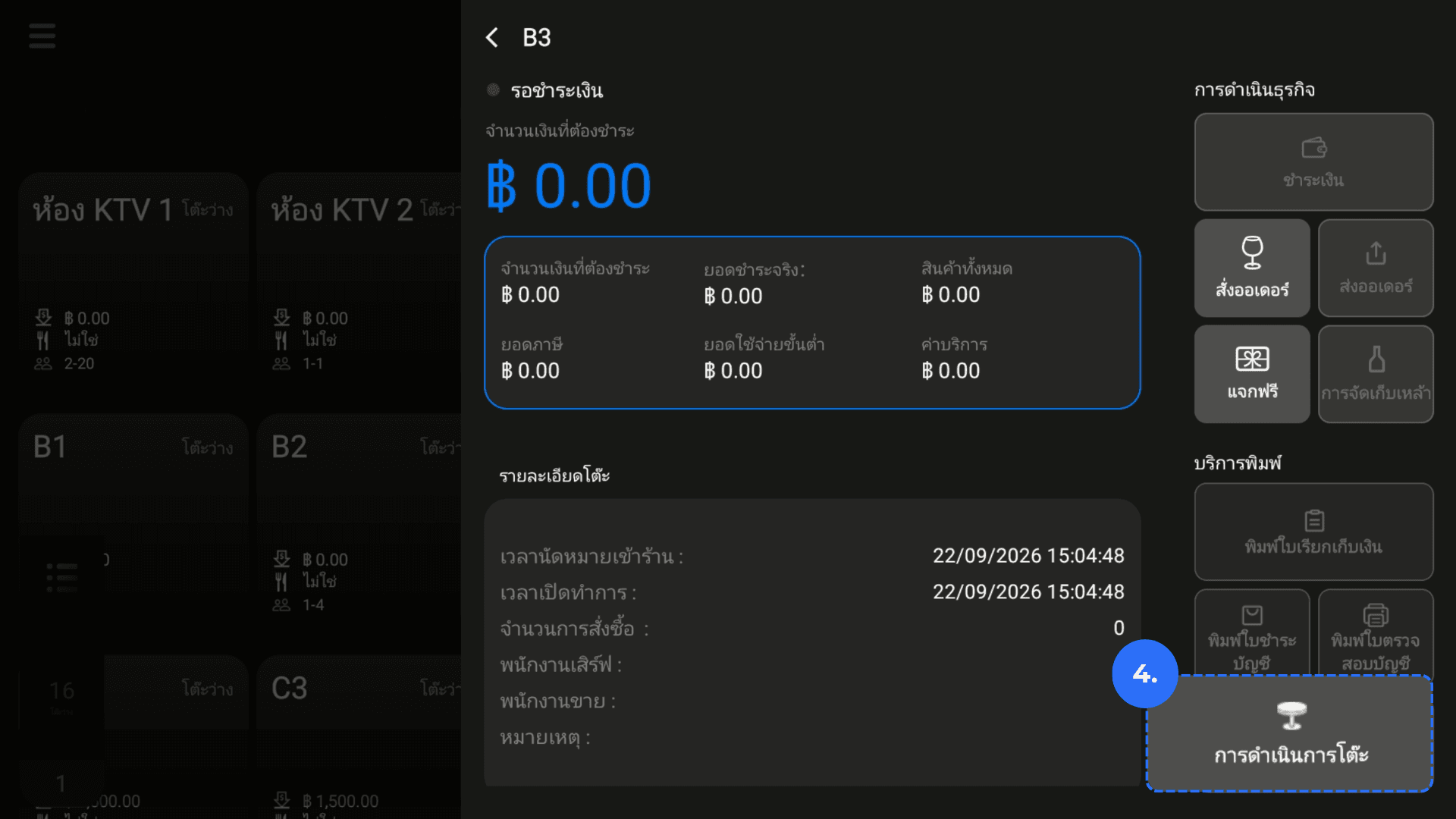
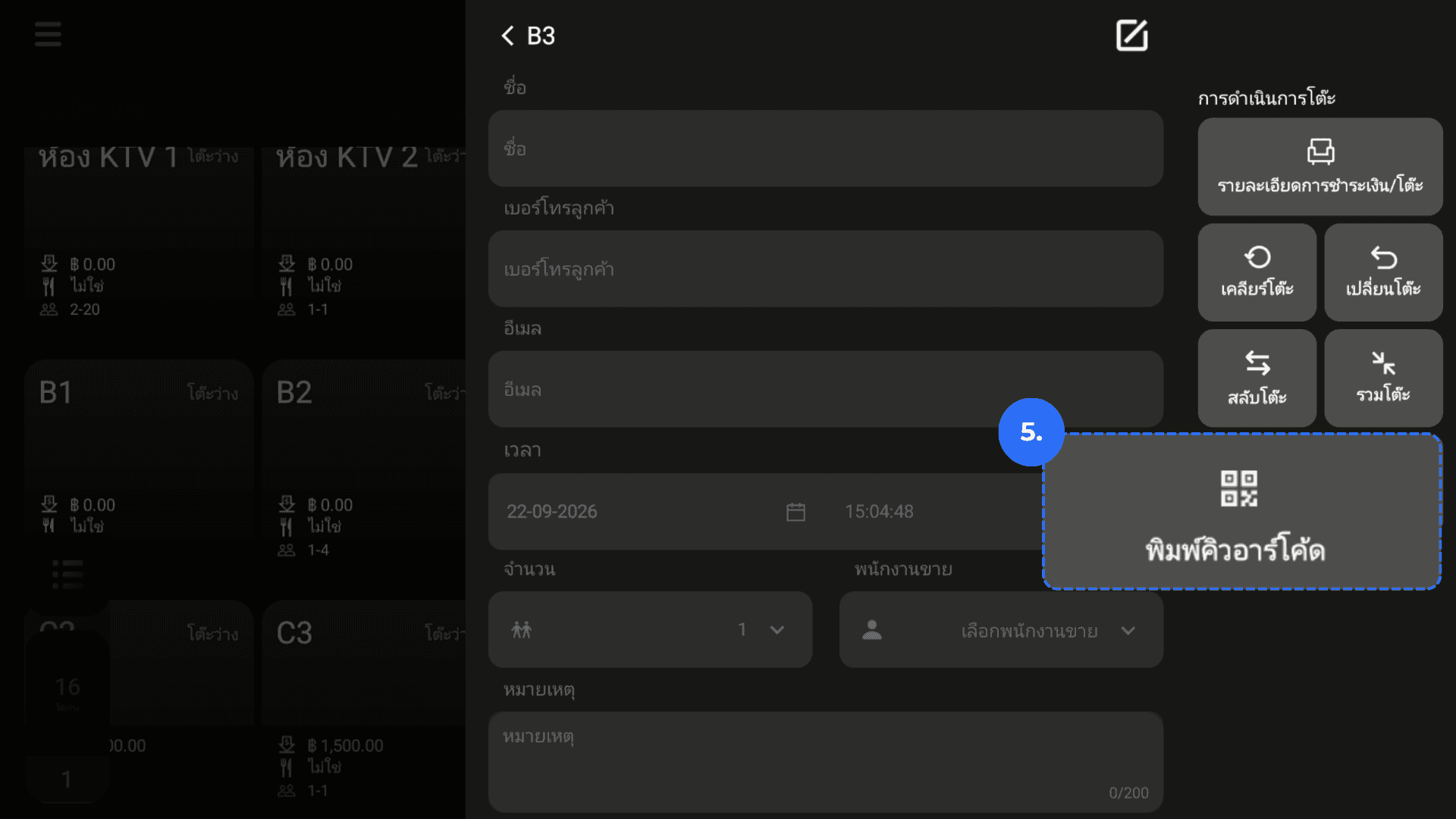
5. Press on Print QR.
6. Display or print the QR code.
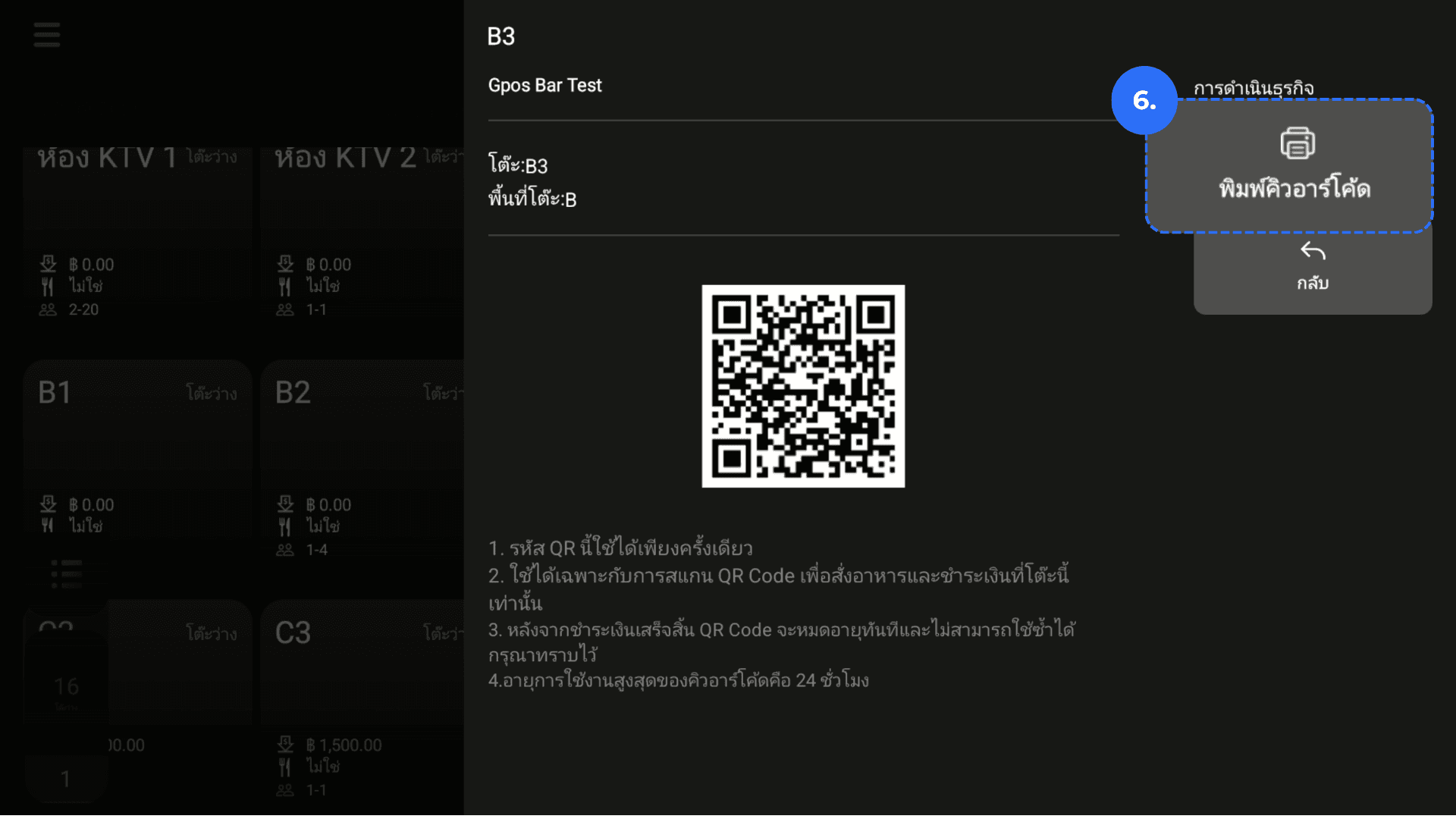
7. Place the printed QR code at the correct table.