Open a Table and Add Products
Updated
Select a table, open the order screen by pressing on Open Table, add the customer's products, and either send the order for preparation or continue directly to payment.
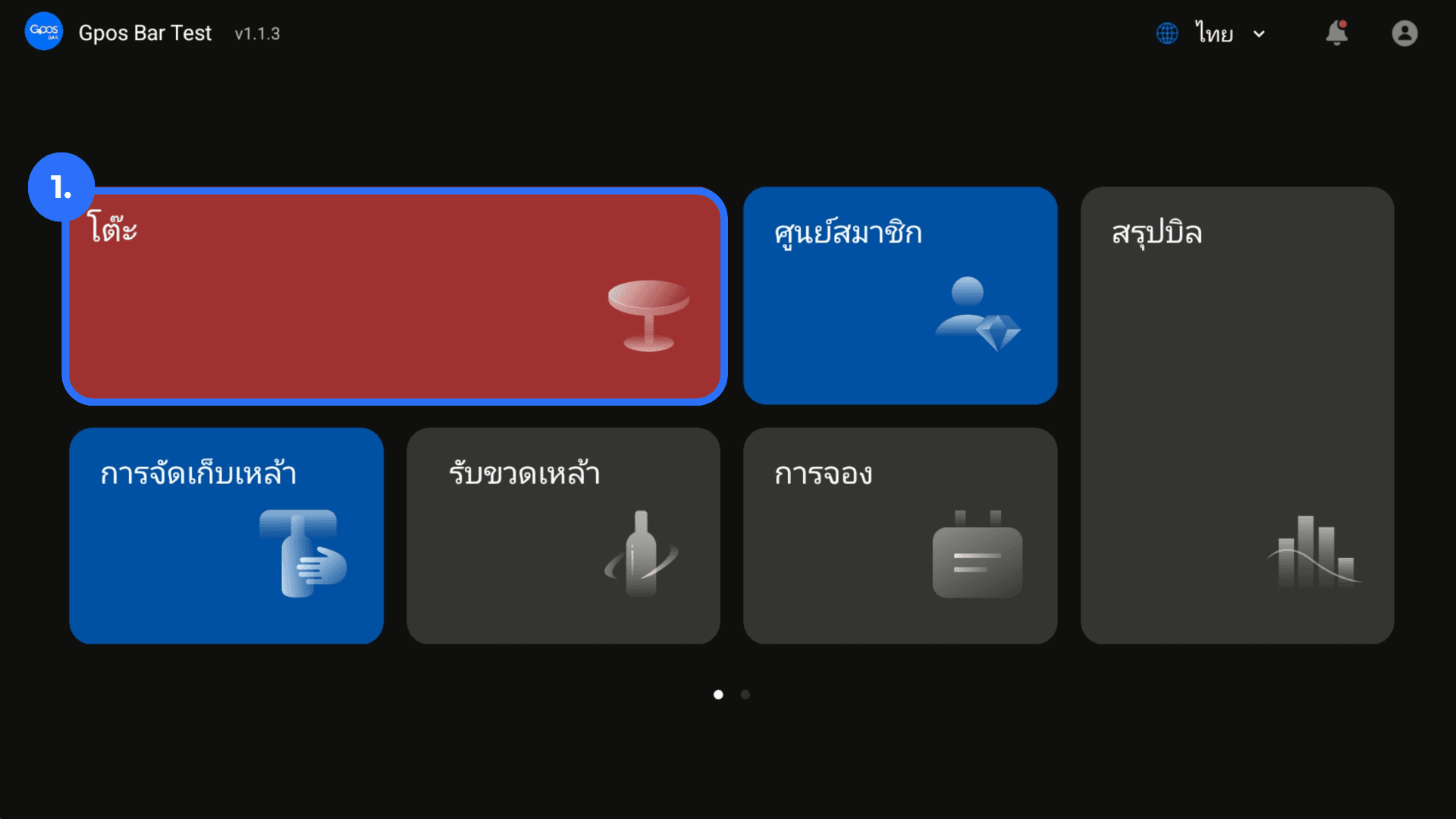
1. From the homepage, click Table
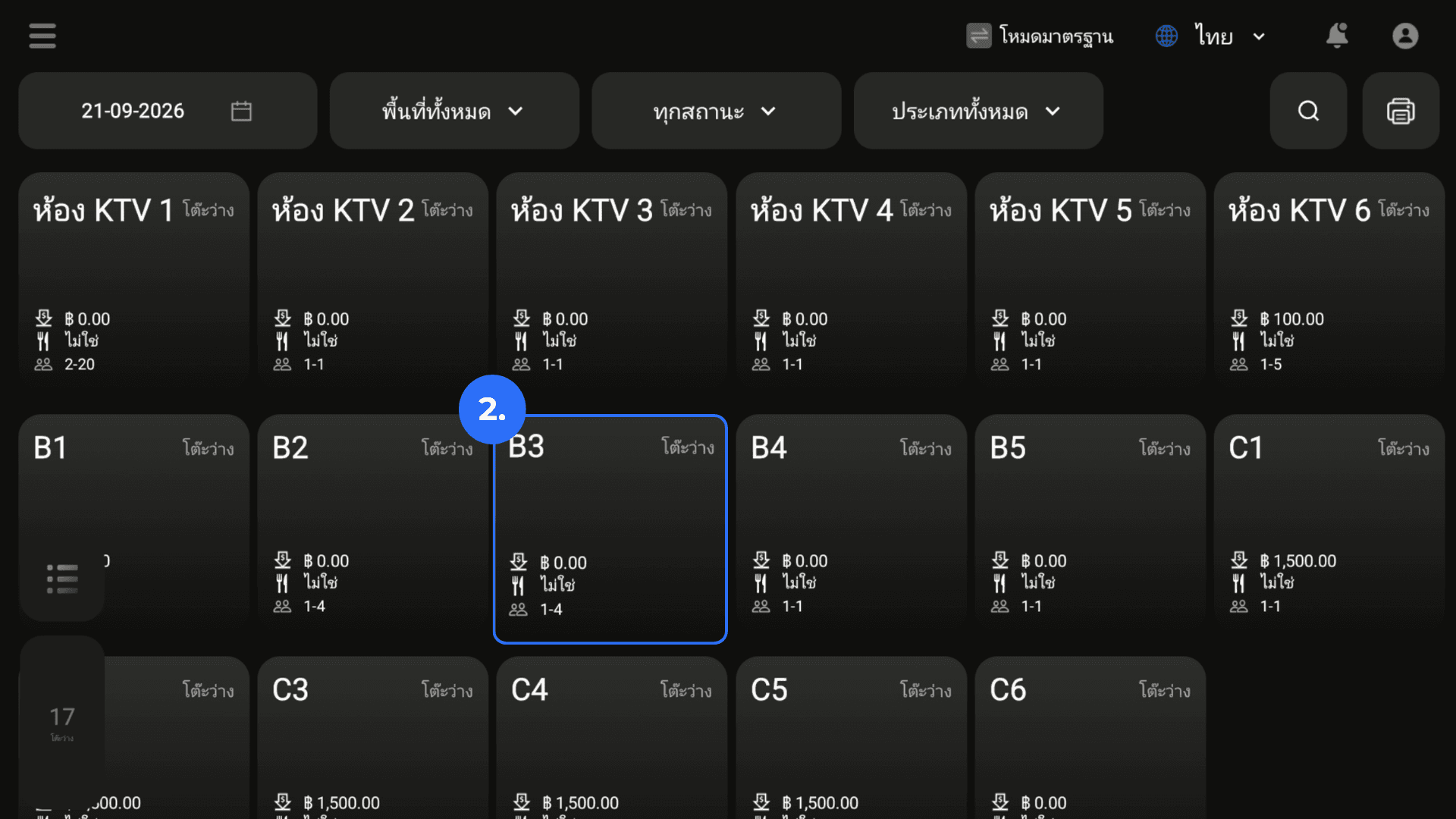
2. Select the required table.
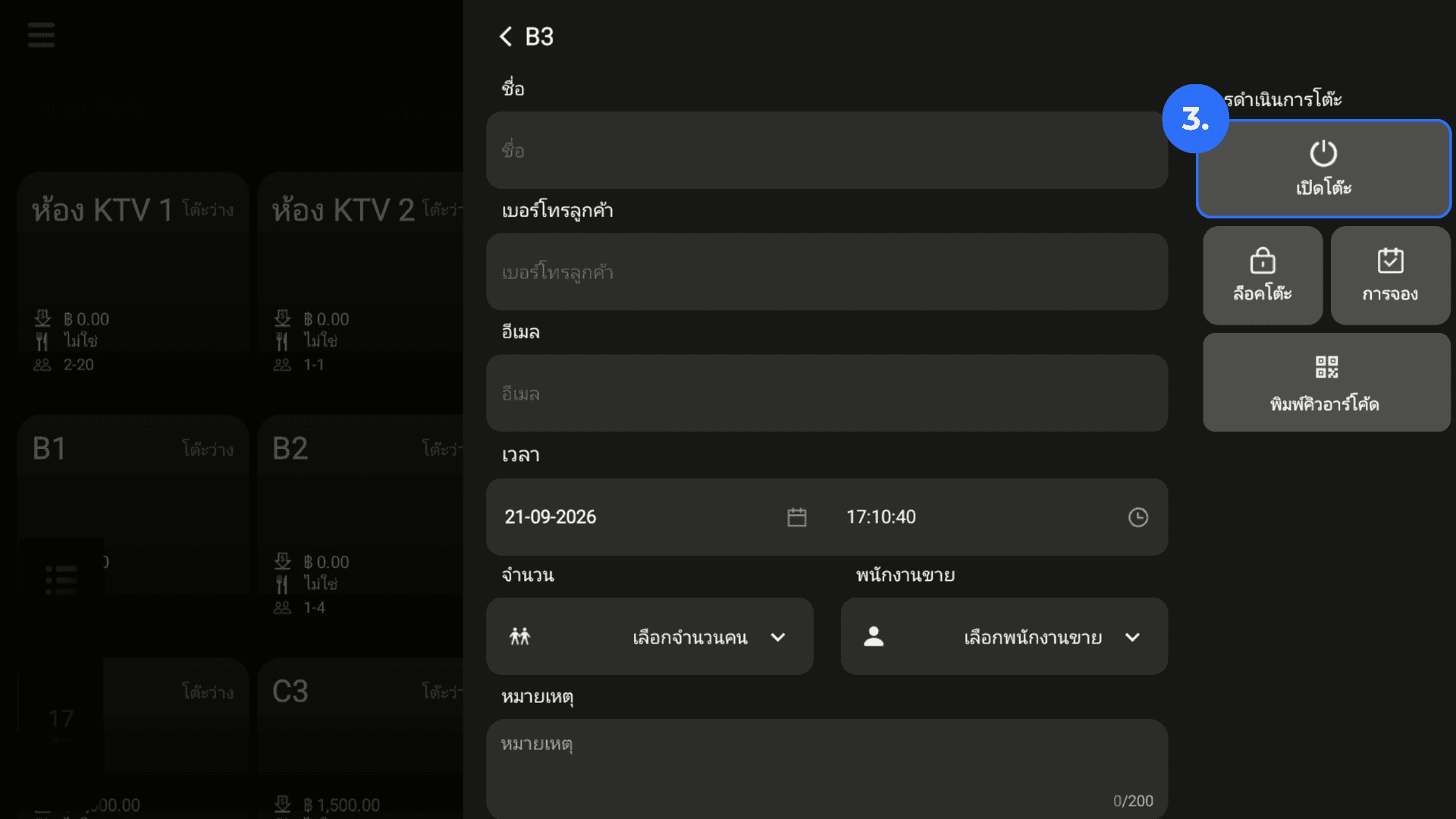
3. Click Open Table to open the menu page.
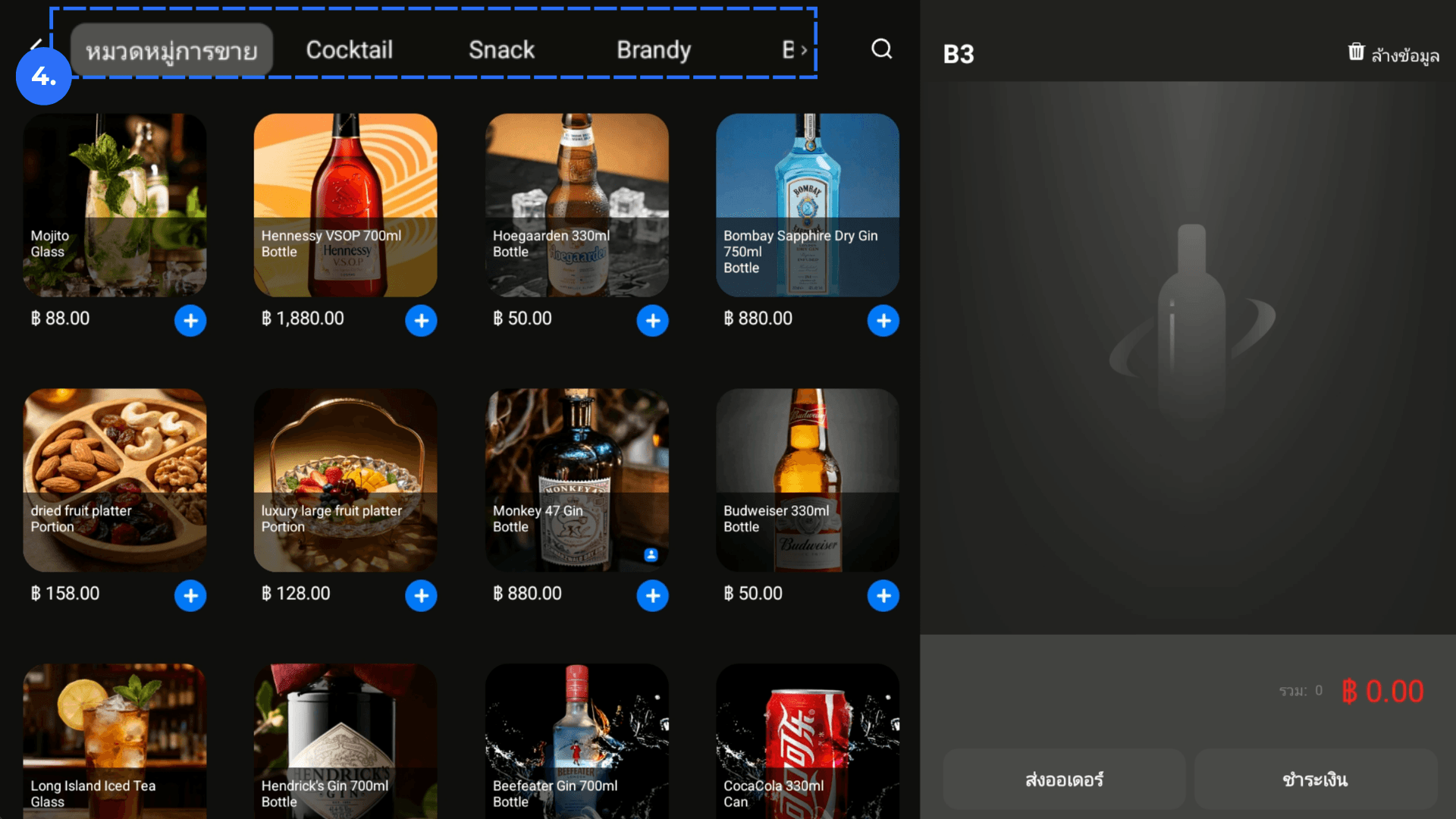
4. Find products by swiping through Product Categories.
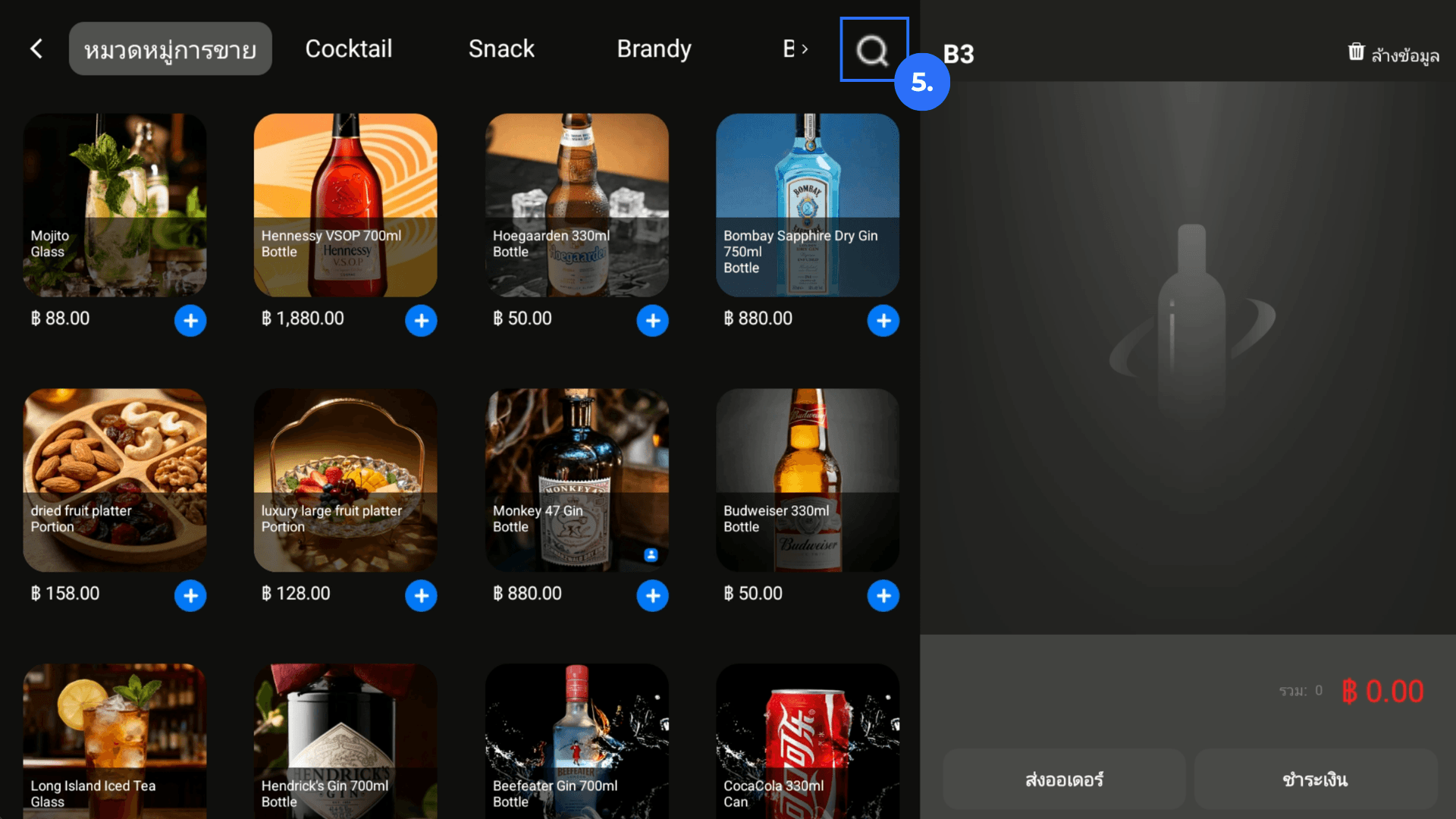
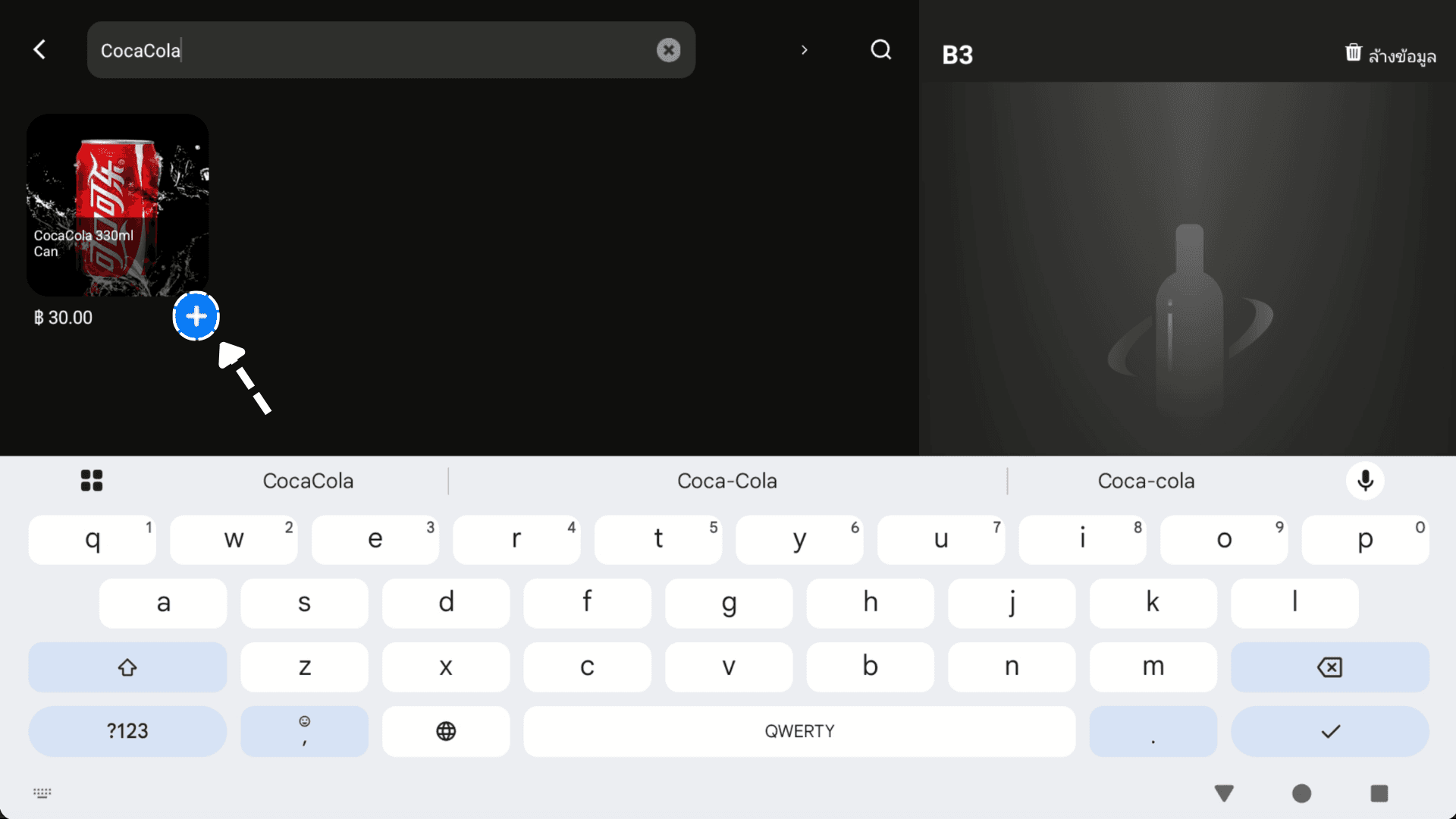
5. To search directly, click the Search icon. Enter the Product Name. Click + beside each required product.
6. Review the products in the order panel on the right.
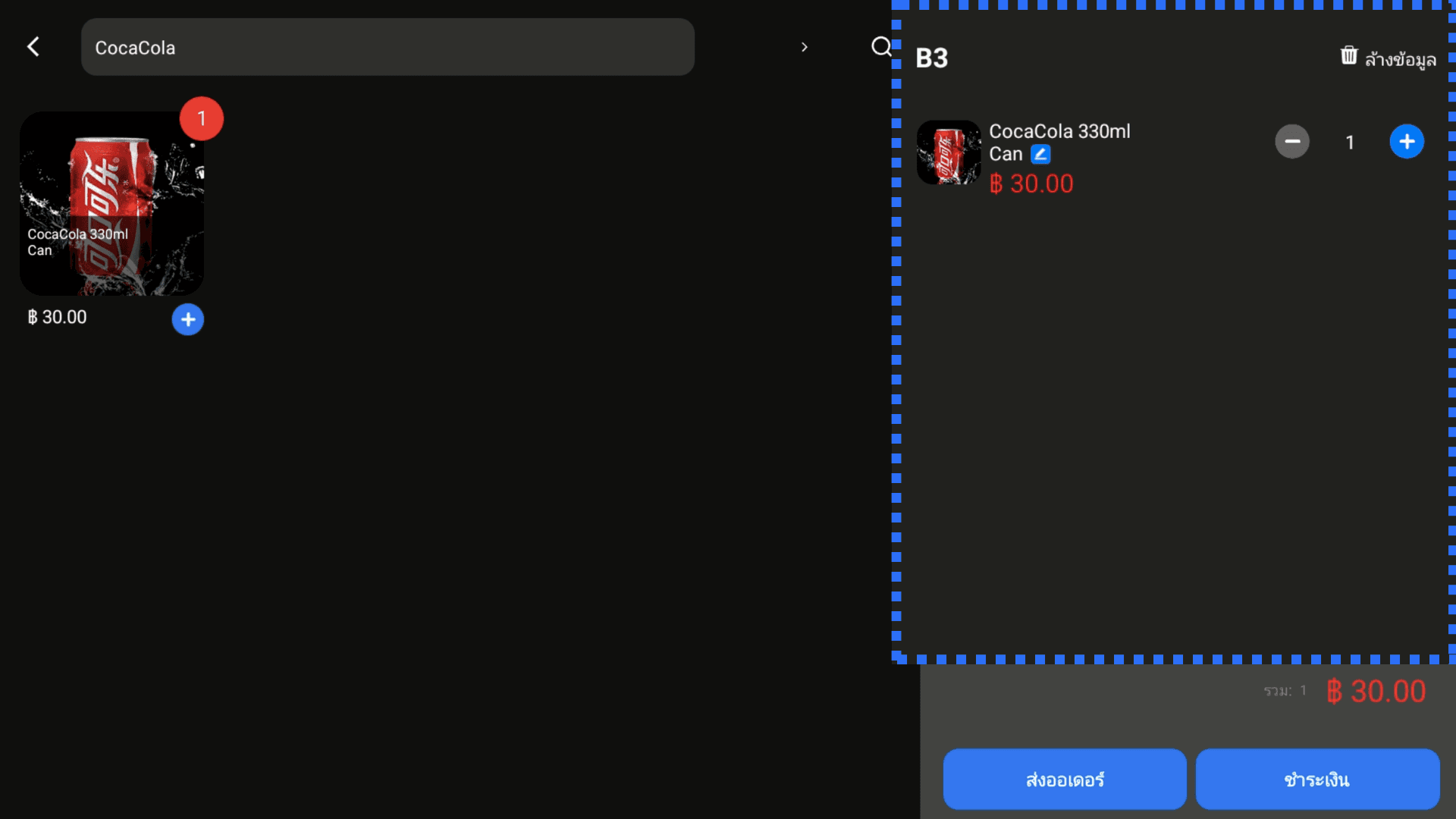
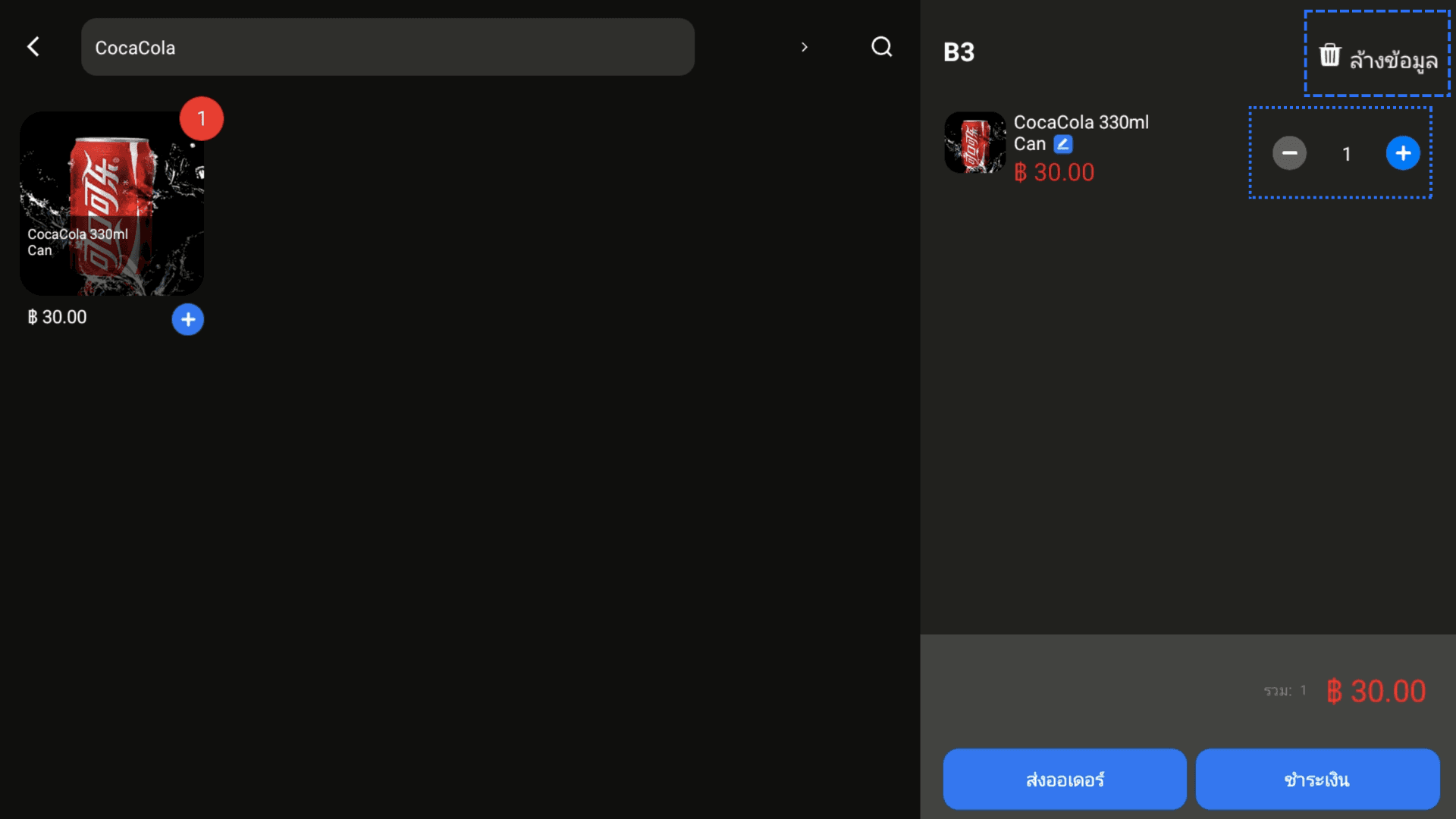
7. Adjust quantities or delete products when needed.
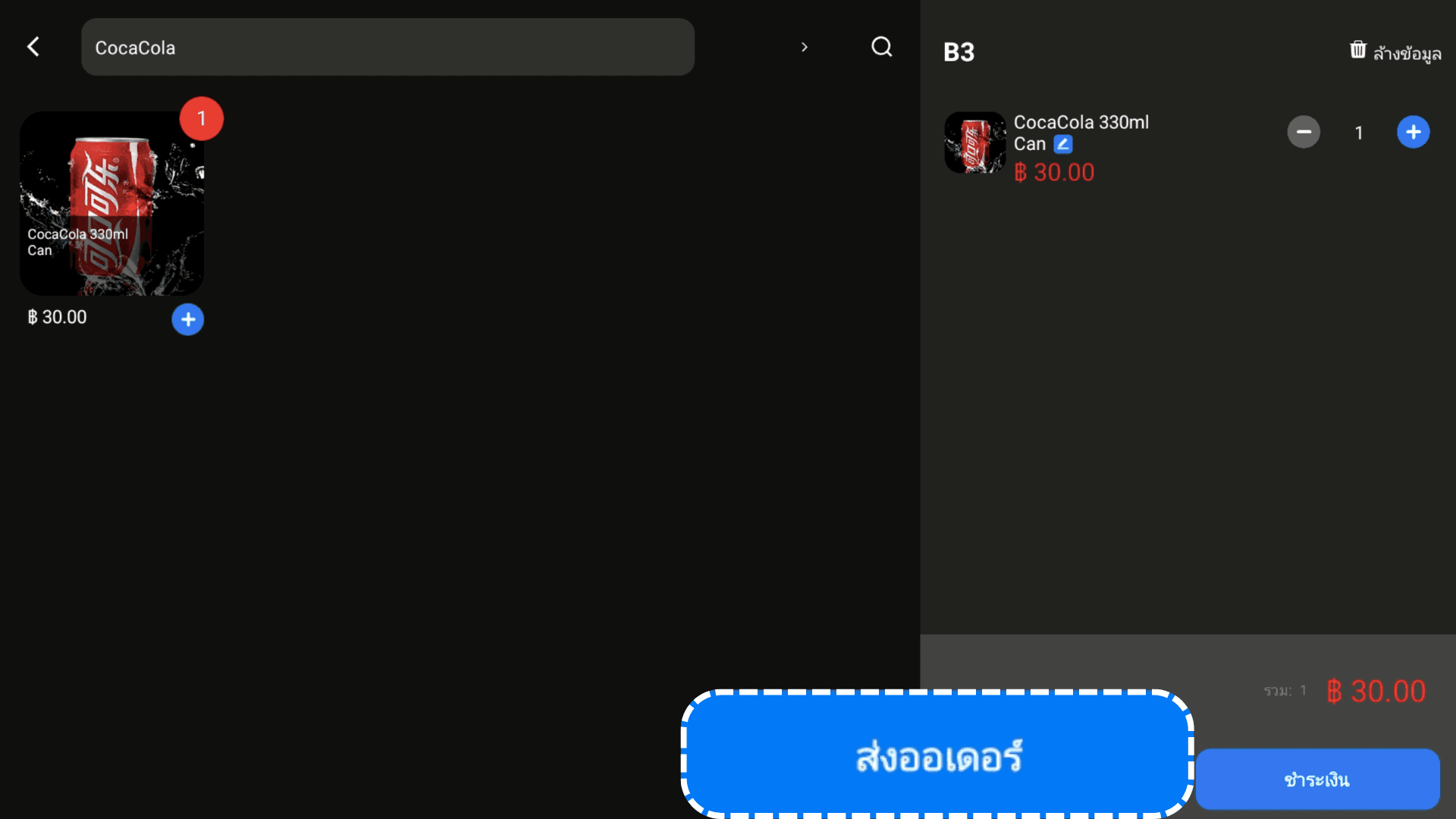
8. Click Send Order to send the order for preparation.
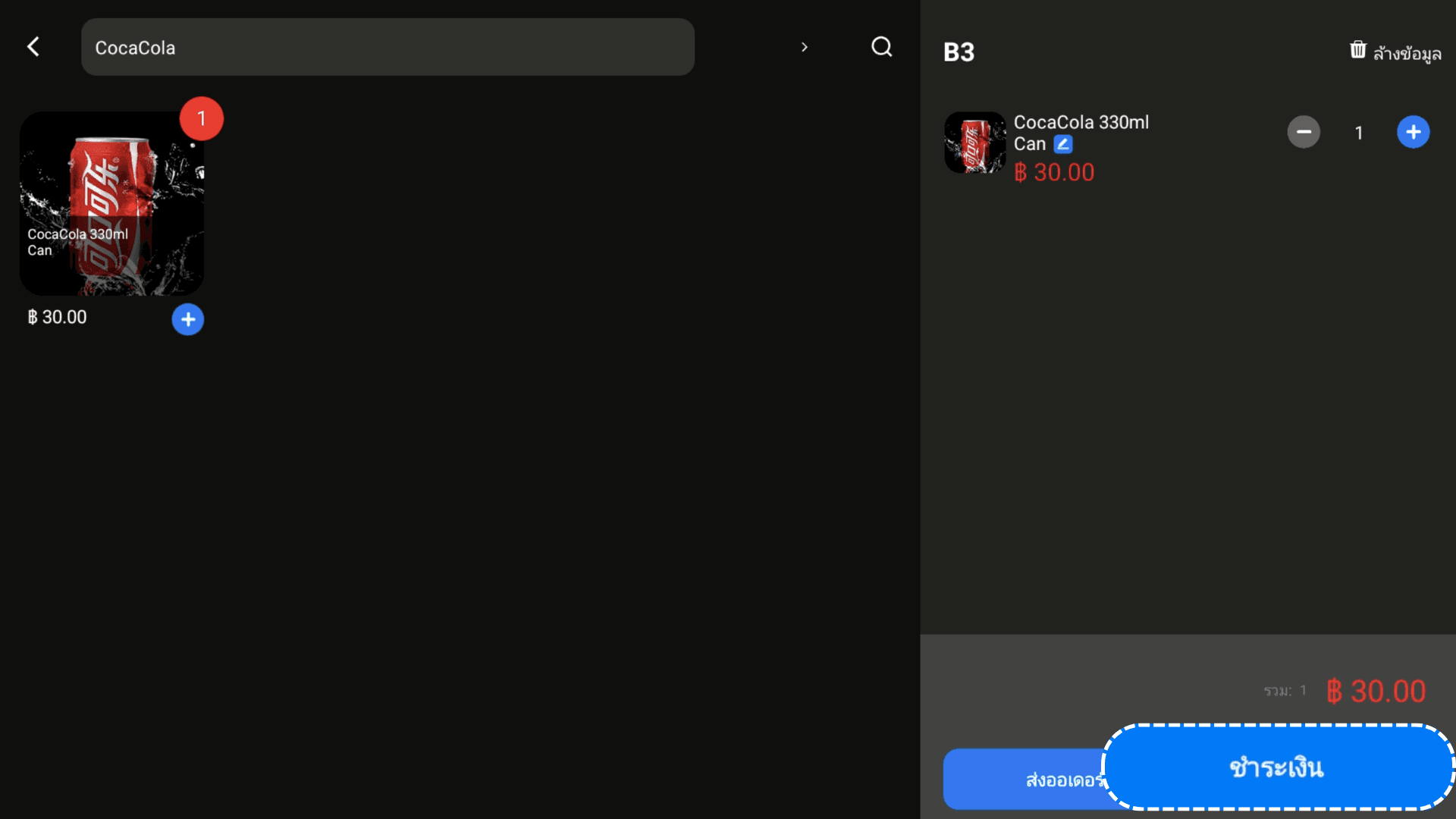
9. Alternatively, click Pay to continue to checkout.
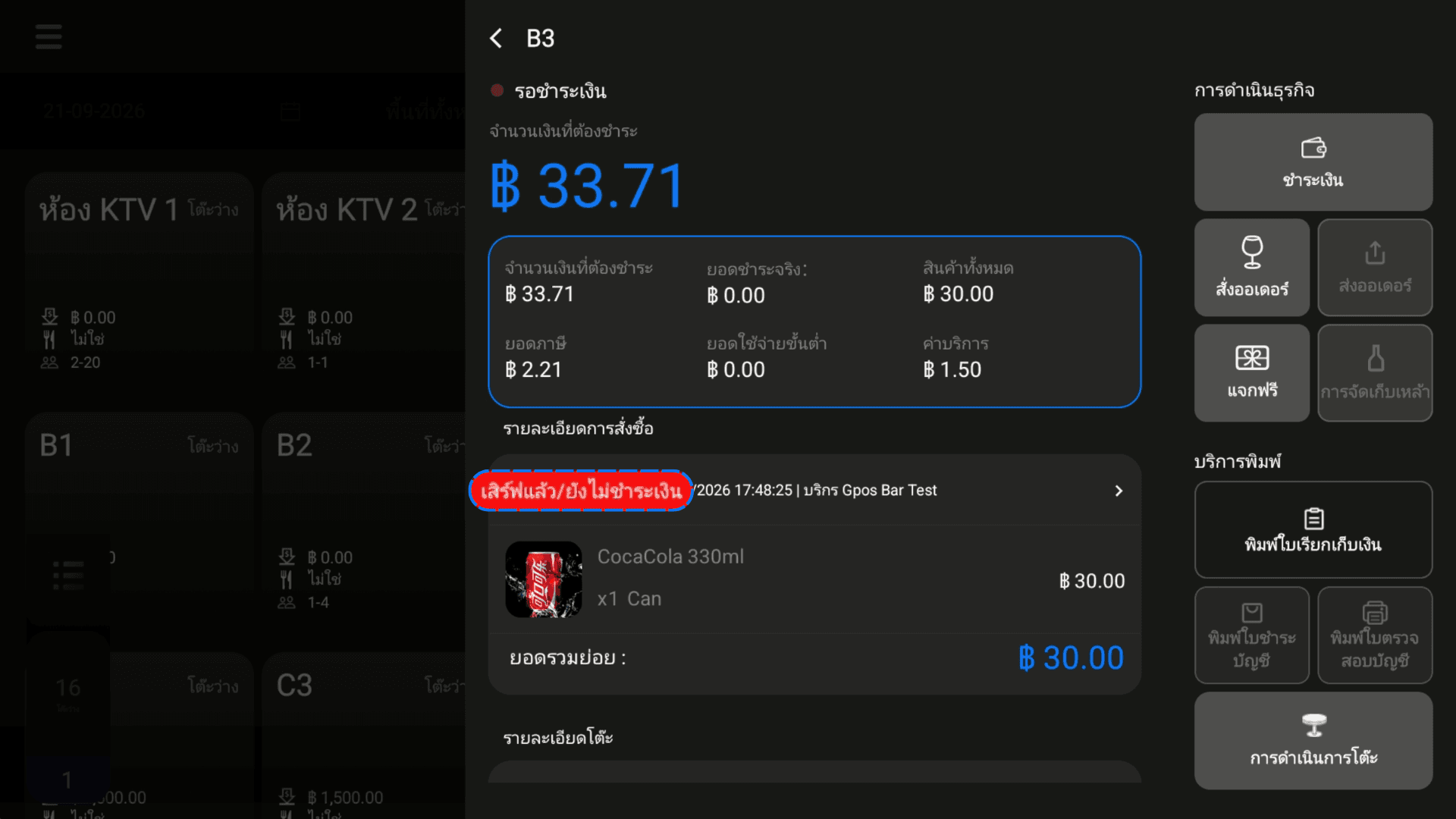
Check preparation
After sending the order, open Table Details and check that the products show Served. Check that the assigned preparation-station printer has printed the Order Ticket. Each preparation station needs a configured printer.