Confirm an Online Reservation
Updated
Open the reservation alert, review the customer's request, assign a suitable table, and confirm the booking. The table then changes to Reserved on all store devices.
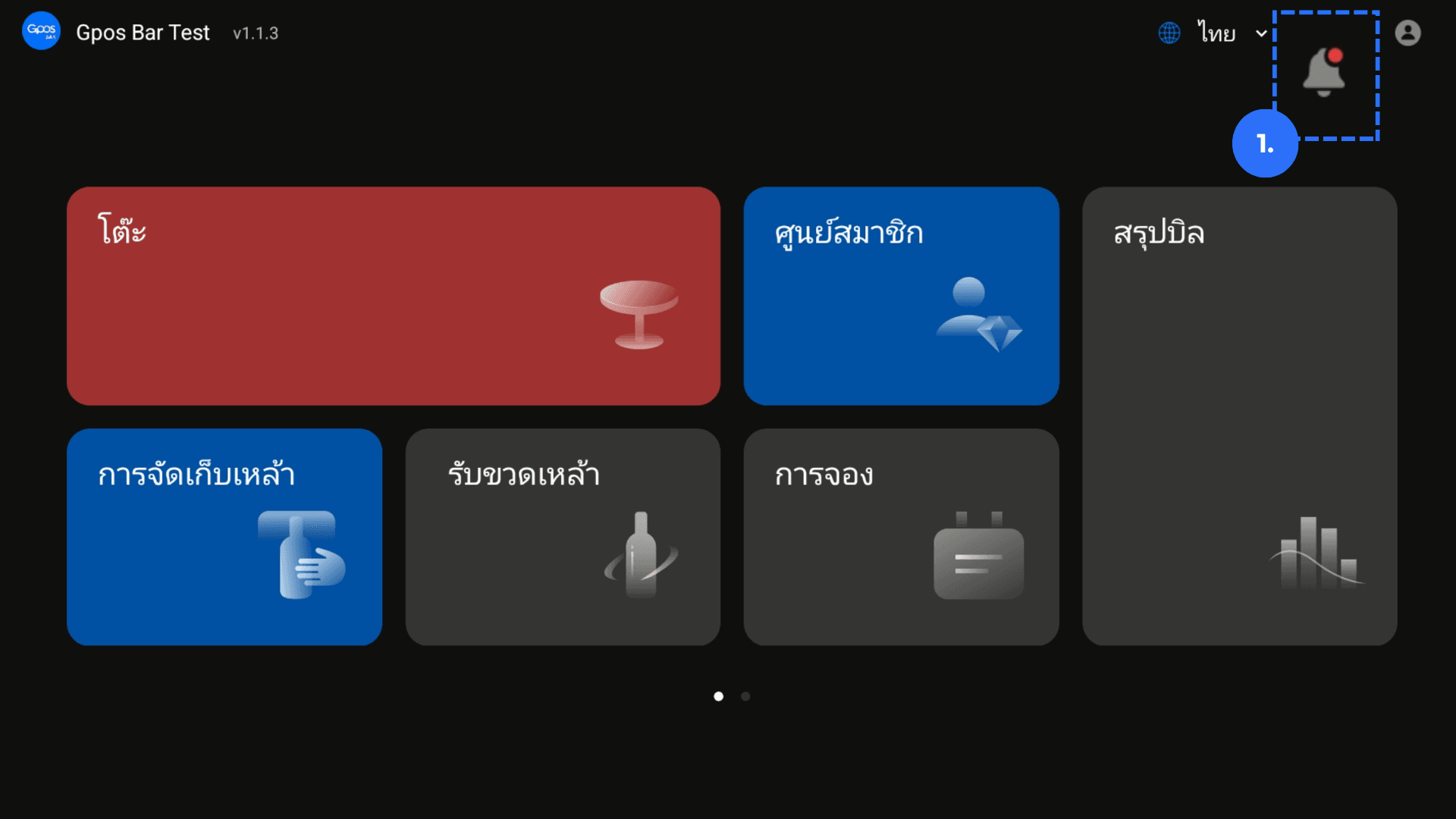
1. Watch for the flashing red-dot reservation notification.
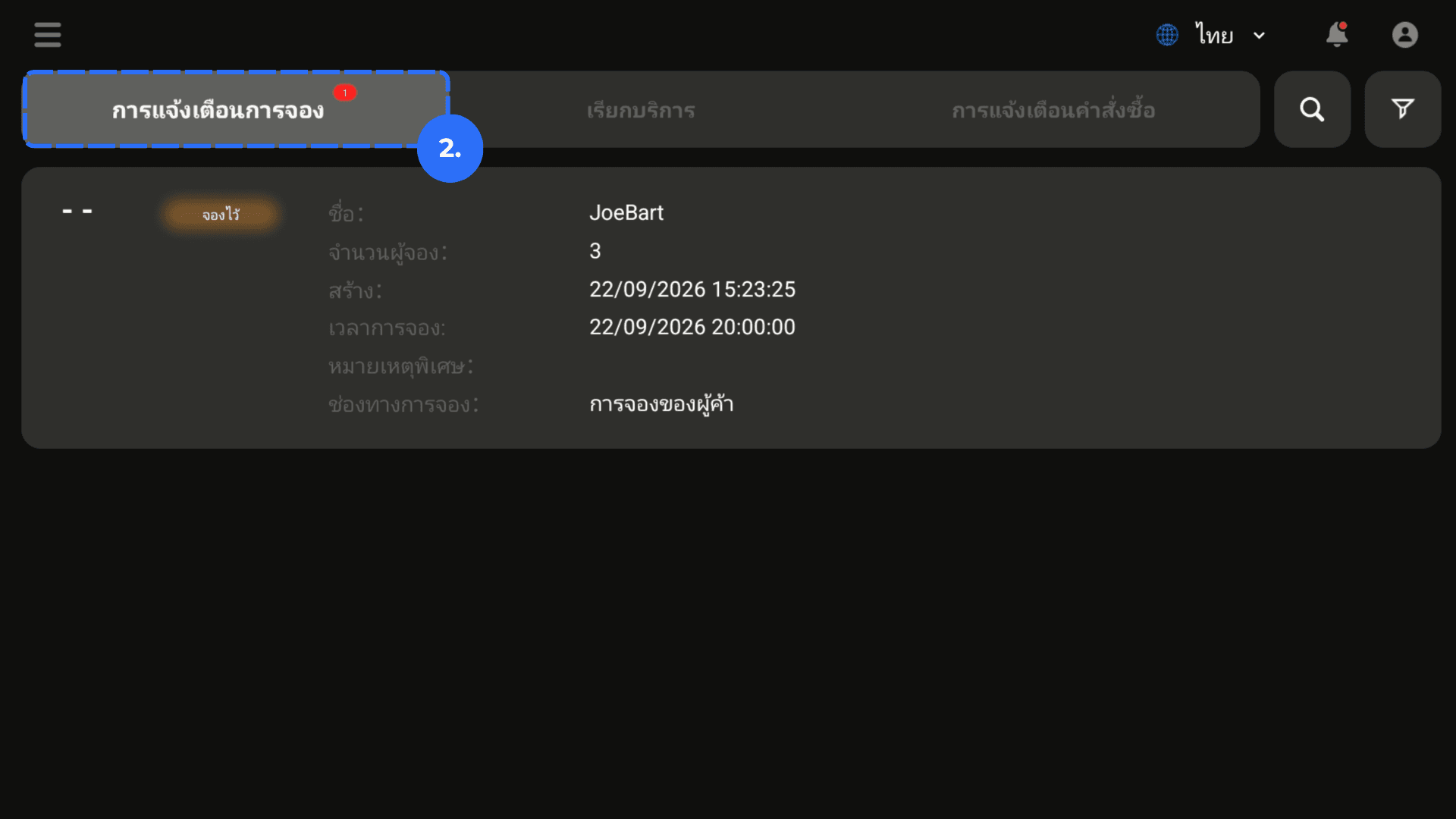
2. Click Reservation Notification.
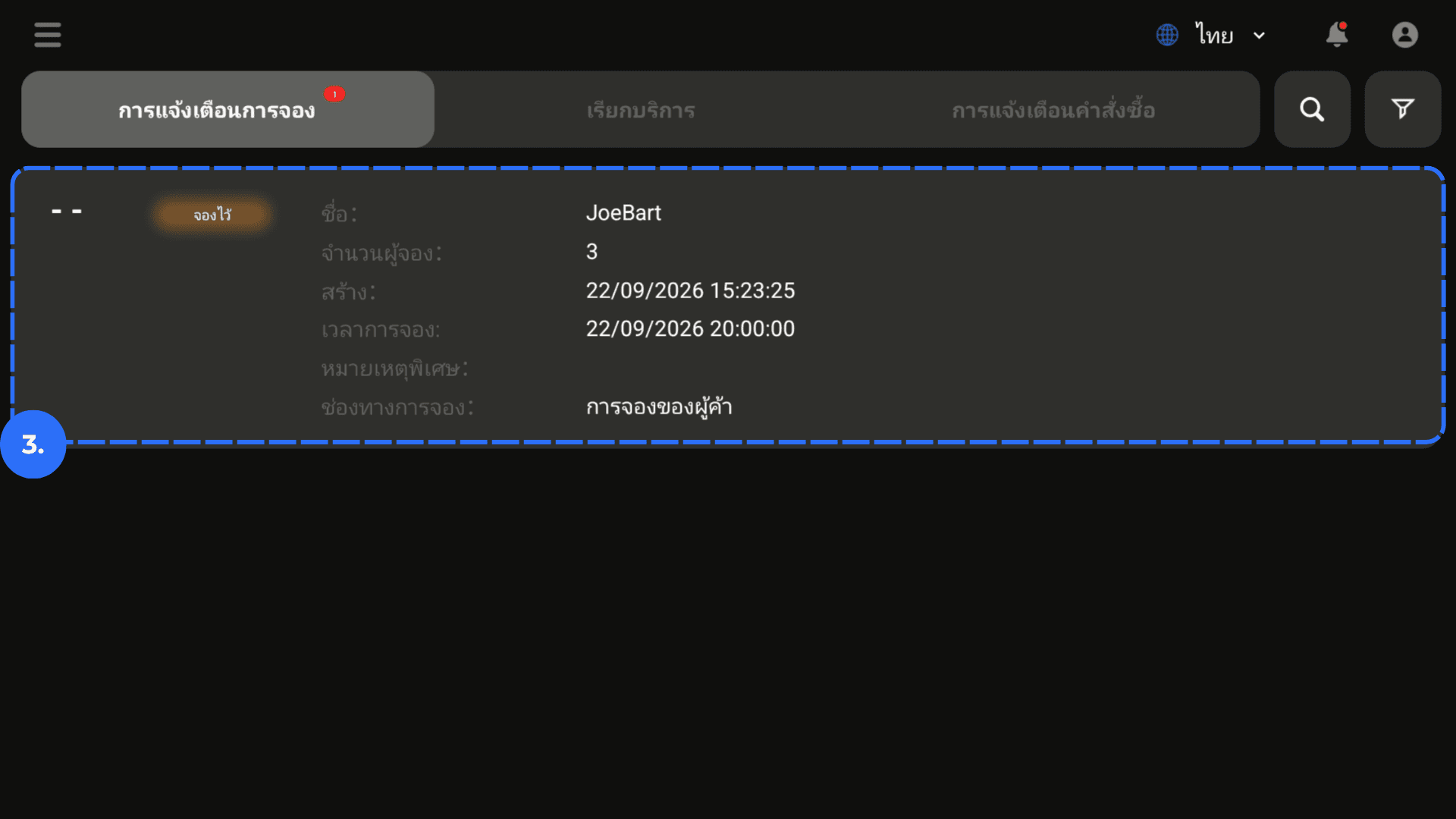
3. Select the reservation to process.
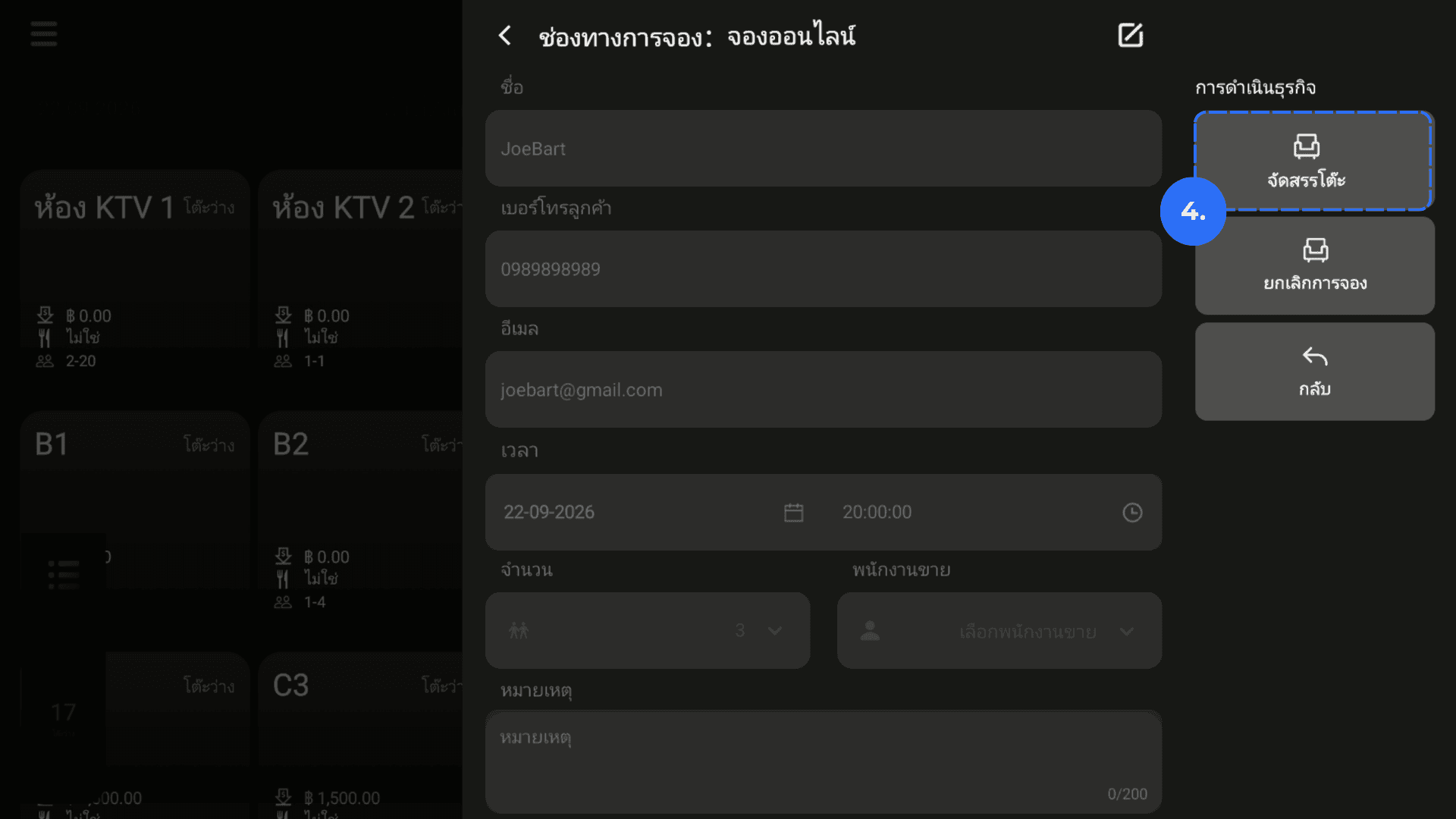
4. Select a table that matches the customer's request. Click Confirm.
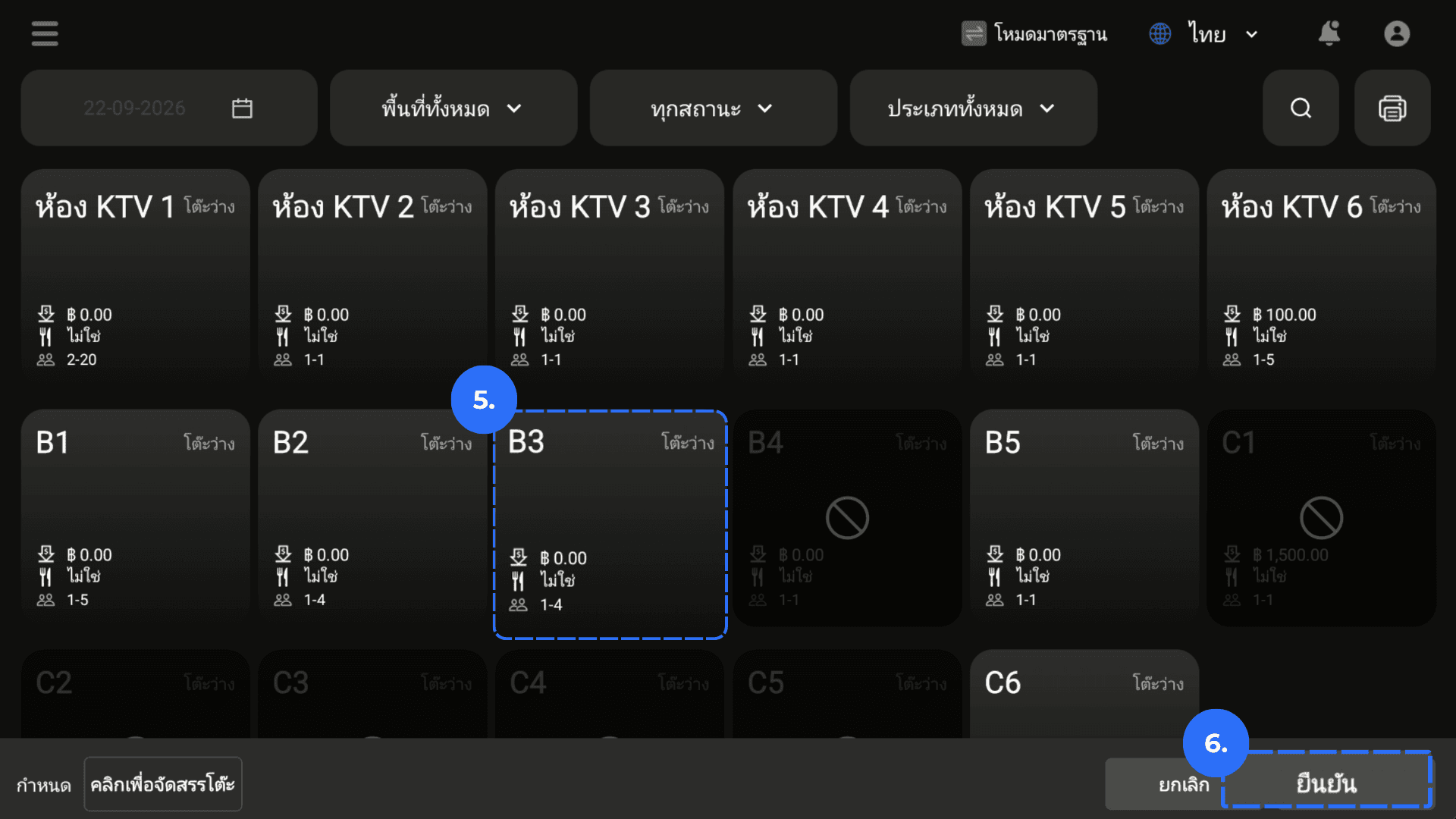
5. Check that the table status changes to Reserved.
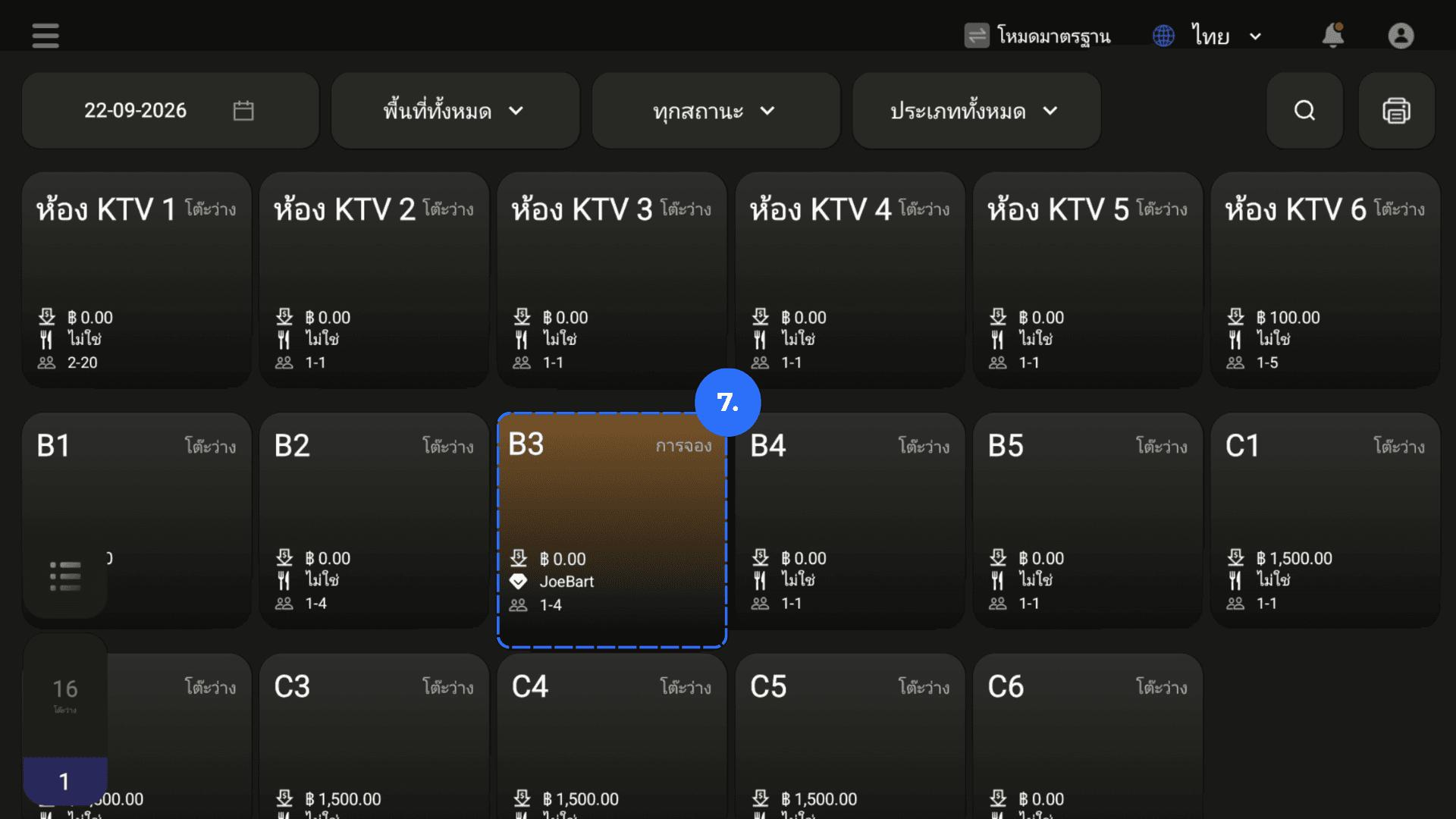
6. Click the reserved table to review the customer information.
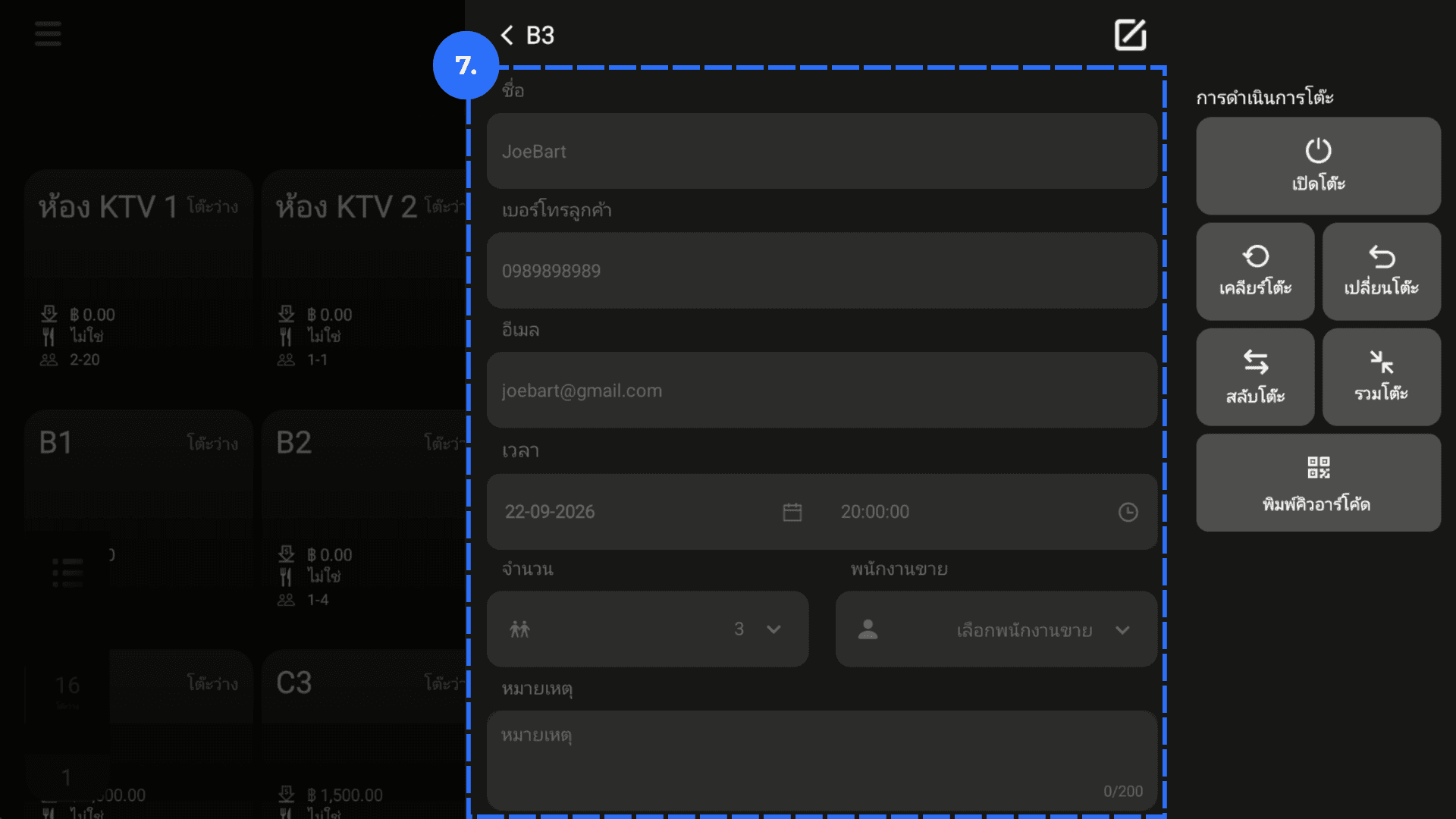
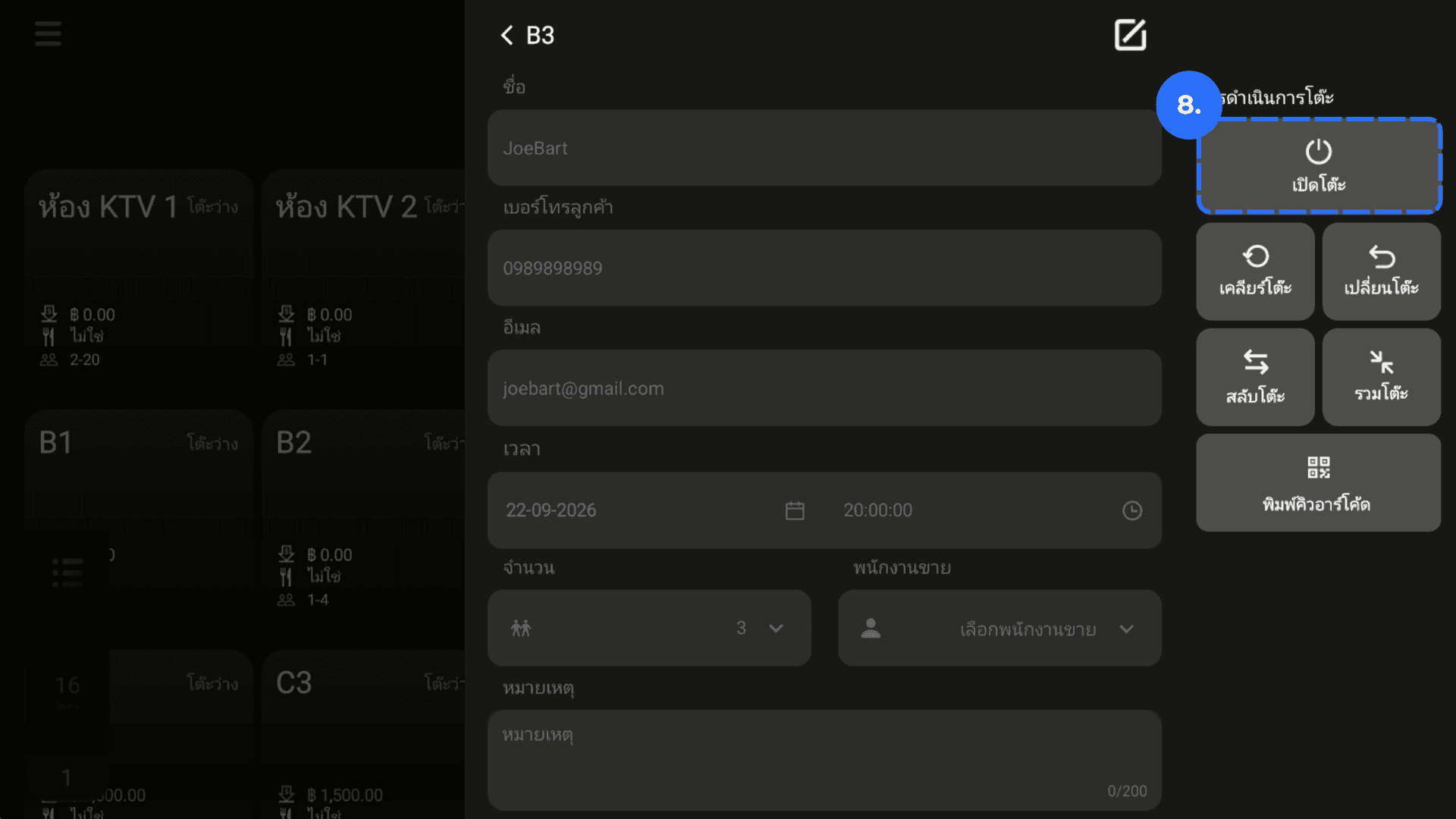
7. When the customer arrives, select the reserved table and click Open Table.